


Amigo Plan: Beeline, #N/A
Unlimited
eSIM for Kazakhstan
Trusted by
Check CompatibilityOur Kazakhstan eSIM provides instant connectivity for travellers nationwide. Eliminating physical SIM swaps, we offer high-speed internet at competitive rates.
-

Quick Installation
-

Instant Activation
-

Money-back Guarantee!
1 / 3
How long is your trip?
Choose your plan

No Plan Available
Secure Payment with:


Amigo Plan: Beeline, #N/A
Unlimited
How to Get Started with Amigo eSIM for Kazakhstan
Set up your eSIM in minutes — no physical SIM needed.
Works on most unlocked smartphones worldwide.
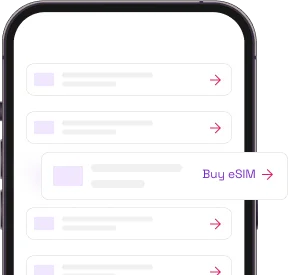
Buy a plan
Buy a plan that suits your travel duration. Make sure to check your device's compatibility.
To check compatibility dial *#06#. If you have an EID code your phone is eSIM compatible.
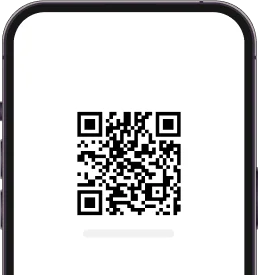
Install your eSIM
You will receive an email with a QR code and installation details. Simply scan the QR code to kick-start your installation.
For Three plans, you will need to insert the 4-digit confirmation code when prompted.
Activate & connect
Your plan will get activated once you land to your destination. Remember to turn on data roaming of your eSIM.
Why choose Amigo eSIM in Kazakhstan
Instant eSIM delivery
Instant eSIM delivery straight to your email—perfect for last-minute plans! Stay connected hassle-free, no matter when you buy.
Always on support
With Amigo eSIM, you're never alone! Our team is always here to support you whenever you need help. Hassle-free, reliable, and always happy to assist!
Reliable connection
Amigo eSIM automatically connects to the strongest network in every country, guaranteeing seamless and uninterrupted connectivity wherever you go!
Cost-effective plans
Stay connected for less! Enjoy budget-friendly plans that keep you online without stretching your wallet.
Keep your primary number
Keep your number, keep your chats! With Amigo eSIM, there's no need to update your number or WhatsApp details—stay connected hassle-free!
Share your data
Share your connection effortlessly! Turn on your personal hotspot with Amigo eSIM and enjoy seamless connectivity across all your devices.
As seen in










Why travelers choose Amigo eSIM
Is my phone eSIM compatible?
Your phone must be eSIM compatible and unlocked.
Dial this on your phone
*#06#If an EID number appears, your phone is eSIM compatible and ready to go. No app, no settings menu — it takes seconds.
iOS (Apple & iPhone)
- Go to Settings > General > About.
- Scroll down to Carrier Lock or Network Provider Lock.
- If it says "No SIM restrictions" — unlocked. If it lists a network, it's locked.
Android devices
- Go to Settings > Connections (or Network & Internet) > Mobile Networks.
- Tap Network Operators or Choose Network.
- Turn off "Select automatically" — if multiple networks appear, it's unlocked. If only your carrier shows, it's likely locked.
Reliable and fast connection
Enjoy all your favourite apps in peace
-
Uninterrupted voice and video calls
-
Share all your beautiful moments
-
Go viral on TikTok
-
Event share short stories about your experience
-
Navigate without worrying too much
-
And don't stop your streaming, even when in other country!
eSIM Kazakhstan: No Roaming Charges
eSIM Kazakhstan offers freedom from roaming fees, so you can stay online without breaking the bank.
Quick eSIM Activation in Kazakhstan
Travel-ready in minutes. eSIM in Kazakhstan activates online with zero hassle.
Reliable eSIM Coverage in Kazakhstan
eSIM in Kazakhstan ensures you’re always within reach, with excellent coverage for your travels.
Devices Compatible with eSIM in Kazakhstan
Got a modern phone? Your device is likely ready for eSIM in Kazakhstan—no extras needed.
