

Why is my mobile data not working?
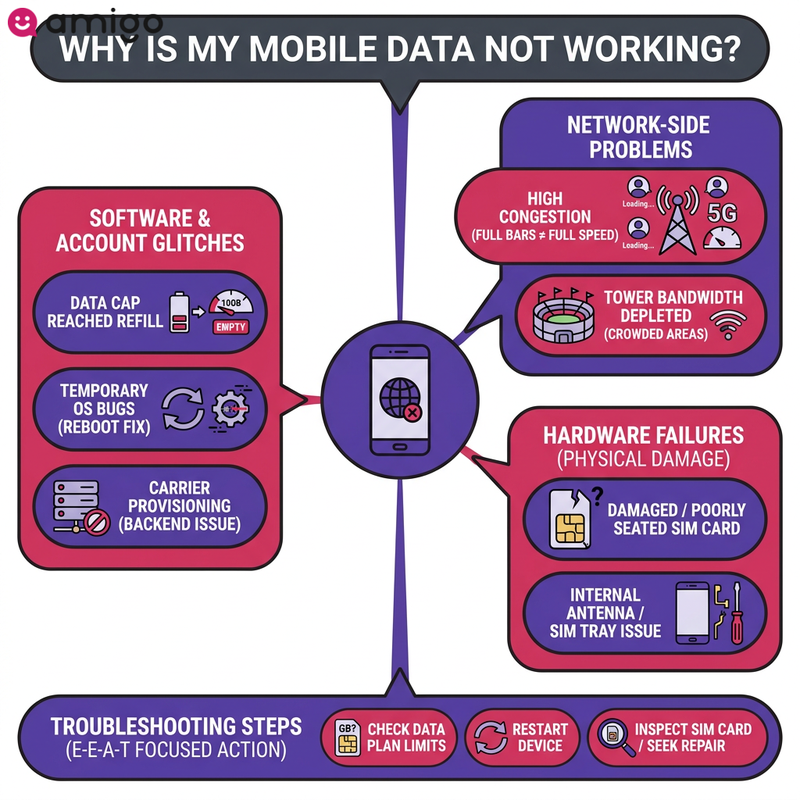
If your phone shows full bars but won't load a webpage, the culprit usually falls into one of three buckets:
- Software glitches
- Hardware failures
- Network-side problems
To figure out what's wrong, you must check if it's device-level errors—like misconfigured network settings—or external carrier outages. Also, remember active Wi-Fi connections frequently hide the cellular data indicator, creating the illusion of an inactive data plan.
Faulty hardware components, such as a damaged SIM card or an improperly installed eSIM, also cause frequent dropouts. Fixing these basic issues is usually all it takes to get you back online. Trust me, I've panicked over a dead connection more times than I can count, only to find out it was a minor settings tweak.
Have you reached your data limit?
Running out of data is a common reason your internet suddenly stops working. Mobile network operators enforce hard caps, such as 5GB or 10GB limits, which can stop cellular data access completely.
Once you empty your high-speed data bucket, carriers often throttle 4G LTE and 5G connections down to 2G or 3G speeds. Did your travel plan expire? Check your provider's app to see if you just need a top-up.
Does network congestion affect your 4G LTE and 5G signal strength?
Heavy network congestion can make your internet grind to a halt even if your smartphone displays full 4G LTE or 5G signal strength. Those bars just mean you're close to a tower, not that the tower actually has enough bandwidth to go around. When too many users connect to a single cell tower—such as at crowded stadiums, airports, or concert venues—they deplete the available bandwidth.
This localized overload causes slow speeds or completely failed cellular data connections. Mobile network operators restrict bandwidth during these periods to manage the load. If you're stuck in a crowd, sometimes the only fix is to walk a few blocks away to connect to a different tower.
Can carrier provisioning errors disrupt your service?
Carrier provisioning is just the backend process that connects your phone to your data plan. Sometimes the carrier's system glitches. When this happens, it's not your phone's fault—it's an issue on their end.
Standard troubleshooting fails if the plan remains inactive on the provider's end. You'll need to reach out to your carrier's support team to restore cellular data.
Mobile data troubleshooting guide
| Common cause | Category | Troubleshooting step |
|
Data limit reached |
Network plan |
Check your provider's app for active data balances and buy a top-up or activate a new eSIM. |
|
Network congestion |
Network-side problem |
Walk a few blocks away to connect to a different cell tower with available bandwidth. |
|
Carrier provisioning errors |
Network-side problem |
Reach out to your carrier's support team to restore cellular data. |
|
Stalled connection |
Software glitch |
Toggle airplane mode on for 10 seconds and then off to establish a fresh connection. |
|
Minor software glitches |
Software glitch |
Restart your smartphone to clear temporary system memory and resolve background app crashes. |
|
VPN interference |
Software glitch |
Disable your VPN application temporarily to allow a proper network handshake. |
|
Persistent software bugs |
Software glitch |
|
|
Incorrect APN settings |
Software glitch |
Enter the exact APN values manually to bridge your phone and the internet. |
|
Traveling abroad errors |
Network settings |
|
|
Loose or damaged SIM card |
Hardware failure |
Reinsert the physical SIM card and perform a device restart to re-initialize the network handshake. |
|
eSIM data failures |
Hardware / Settings |
|
How do you troubleshoot cellular data connectivity issues?
Before assuming the worst, run through these basic troubleshooting steps to isolate whether you are dealing with a minor software glitch or a broader network outage.
Does toggling airplane mode refresh your connection?
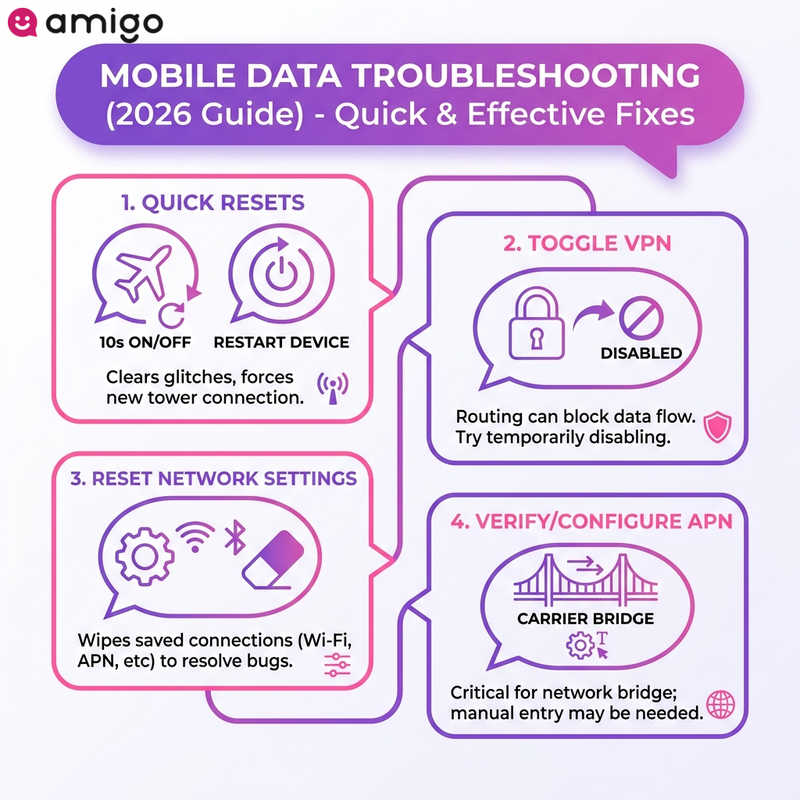
Briefly suspending all wireless transmissions by turning airplane mode on for 10 seconds and then off prompts your device to establish a fresh connection to the nearest cell tower. It's the quickest way to kickstart a stalled connection and restore 4G LTE and 5G signal strength. In my experience, this simple trick solves about half of all sudden data dropouts.
How does a device restart fix network glitches?
Restarting your smartphone is usually the fastest fix for most data issues. A device restart clears temporary system memory and resolves minor software glitches, including frozen network settings and background app crashes. Turning it off and on again clears out background errors so your phone can ping the carrier anew.
This basic step often restores your cellular data without any complex configuration changes. Whether you're on iOS or Android, a quick reboot refreshes your network modules—including both physical SIMs and digital eSIMs.
Can VPN settings interfere with your mobile network?
Active VPN applications sometimes block cellular data traffic because of how they route and encrypt your internet traffic. A misconfigured VPN client prevents your device from establishing a proper network handshake. This can leave your phone showing full bars while completely failing to load a webpage.
Try disabling your VPN temporarily; this simple step often restores mobile data on iOS and Android devices immediately.
How do you reset network settings on iOS and Android?
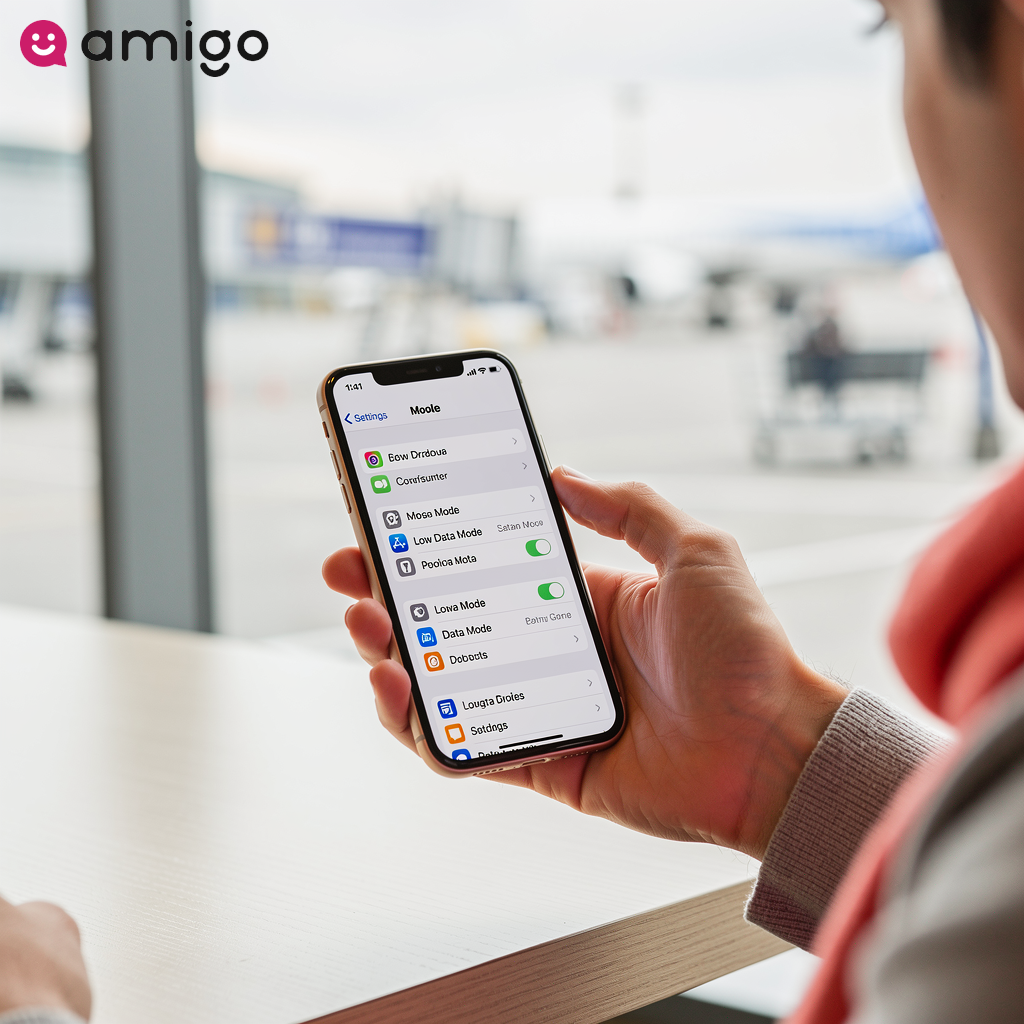
Resetting network settings clears all saved cellular, Wi-Fi, and Bluetooth configuration data to resolve persistent software glitches. You can do this on both iOS and Android. A network reset wipes the slate clean and restores your original network settings, which often fixes bugs introduced by recent OS updates. The procedure erases 3 specific connection profiles:
- A saved Wi-Fi password
- Custom APN settings
- Active VPN settings
Your personal data remains entirely intact. Restoring these default parameters wipes old connection data, giving your device a clean slate to link up with the network, helping you restore data access if severe connectivity issues—like a stalled connection or dropped signal—persist.
How do you configure APN settings?
Your Access Point Name (APN) acts as a bridge between your phone and the internet. If these settings are wrong, your phone simply won't know how to connect to your carrier's network.
If carrier provisioning fails during setup, you'll need to enter the exact APN values manually to get your data flowing again. As a quick pro-tip, always take a screenshot of your carrier's default APN settings before you travel, just in case you need to reference them later.
Why is my data not working while traveling abroad?
Mobile data often fails when traveling to another country due to incorrect APN settings or because your phone isn't compatible with the local networks. Connecting to a foreign mobile network requires active roaming agreements, such as 4G LTE and 5G network partnerships between your home provider and a local operator.
You won't be able to get online if you don't have an active travel plan or eSIM. Fortunately, a few quick tweaks in your settings can usually fix these international connection errors.
Is data roaming enabled on your device?
The data roaming toggle in your network settings allows your phone to connect to the internet outside your home provider's coverage area. Activating this function establishes a direct connection to partner networks abroad. Installed eSIMs and prepaid travel data plans need this setting turned on to work.
You can resolve most international connectivity issues simply by ensuring data roaming is explicitly enabled. I used to be terrified of leaving this switch on due to horror stories about roaming fees, but if you're using a prepaid eSIM, it's completely safe and necessary.
How do you manually select a local mobile network operator?
If automatic network selection fails, picking a local carrier manually can quickly fix your connection. By turning off the automatic function in your settings, you force your phone to bypass weak signals and lock onto a stronger partner network. This direct connection restores your data access and boosts signal strength.
Can hardware issues cause mobile data failures?
Unlike a software glitch that a quick reboot can fix, physical hardware problems will completely block your access until the part is replaced. For instance, if your SIM tray is bent or the internal antenna is damaged, no amount of settings adjustments will help.
Shifts in network technology also cause severe connectivity issues for users operating older smartphones. The global shutdown of older 3G networks means some legacy smartphones simply won't work anymore. If your older device lacks a 4G LTE or 5G modem, it won't be able to connect to modern cell towers.
Does a faulty SIM card prevent internet access?
A damaged or poorly seated SIM card prevents your phone from authenticating with the carrier's network, instantly cutting off internet access. Whether it's a scratched physical chip or a failing internal antenna, these hardware defects prevent your phone from connecting to the network. I once spent hours troubleshooting software settings on a trip, only to discover my physical SIM card had just been nudged slightly out of place in my pocket.
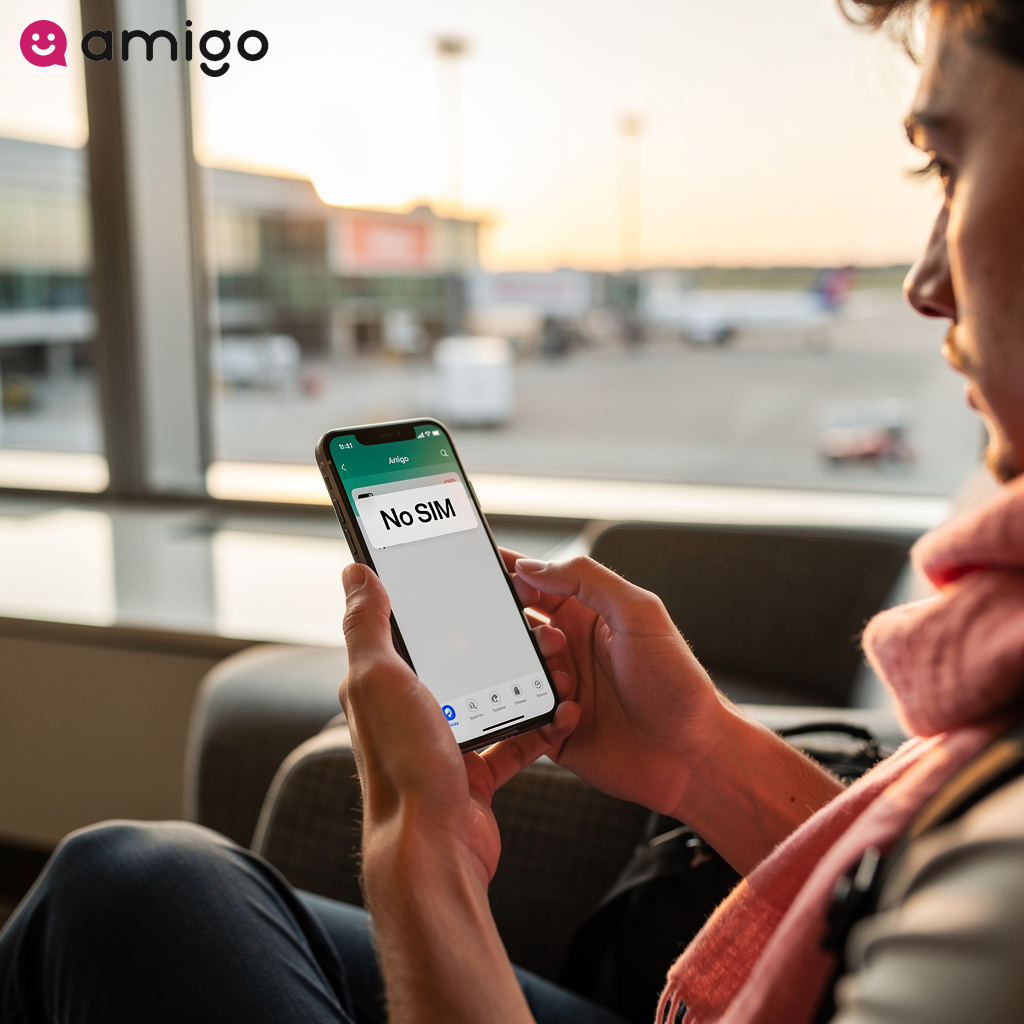
You'll usually know your SIM is loose or damaged if you see:
- A "No SIM" prompt
- Missing 4G LTE or 5G signal bars
Reinserting a physical SIM card and performing a device restart helps the system re-initialize the network handshake to restore cellular data. But keep in mind, standard troubleshooting fails to restore a mobile data connection if the physical components sustain permanent damage. No amount of tweaking your settings will help if the SIM card itself is broken.
Why is my eSIM data not working?
eSIM data failures typically result from incorrect activation steps, disabled roaming settings, or selecting the wrong primary data line. These embedded chips provide a digital alternative to physical cards, but common configuration errors specific to digital eSIM profiles can prevent devices from connecting to a mobile network operator. Make sure you've actually selected your new eSIM as the primary line for cellular data in your phone's settings.
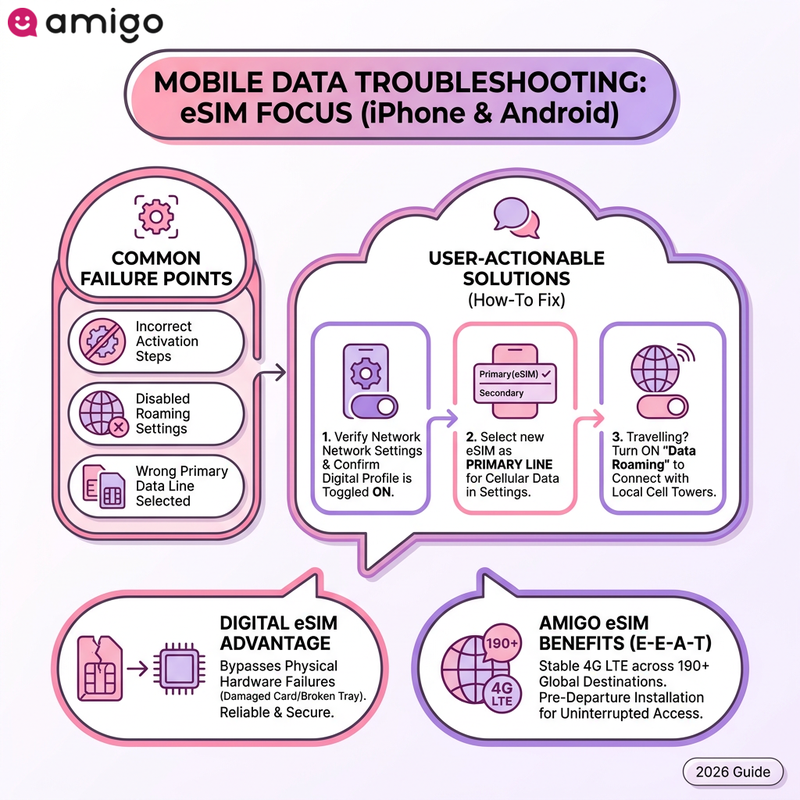
A smartphone defaults to a home provider if you select the incorrect primary line. You can restore mobile data by verifying your network settings and confirming the digital profile is toggled on. If you lose your connection while traveling, turning on the data roaming switch establishes a connection to local cell towers.
Is your prepaid travel data plan active?
It sounds obvious, but make sure you actually have data left on your plan. You can confirm an active data plan by checking data balances within your provider's application. Reaching a high-speed data limit or experiencing carrier provisioning errors instantly stops cellular data access.
Mobile network operators enforce strict usage caps, such as 5GB or 10GB thresholds. If you deplete this allowance, you'll need to buy a top-up or activate a new eSIM to restore connectivity.
When should you perform a factory reset?
You should only perform a factory reset as a true last resort: when deep-seated software bugs completely block your cellular data and standard fixes—like a simple restart—fail to work. This procedure returns a smartphone to its original state by erasing all user data.
Be warned: a factory reset will permanently delete your personal files, photos, and saved Wi-Fi networks. Deep-seated system errors occasionally mess up how your phone talks to your carrier. Initiate a factory reset only if persistent glitches survive lesser actions, like toggling airplane mode and clearing temporary system memory.
How does Amigo eSIM provide reliable travel connectivity?
Amigo eSIM offers digital data plans—including regional packages and single-country profiles—that help you avoid common roaming headaches. Digital activation completely bypasses physical hardware failures that disrupt cellular data, such as a damaged SIM card or a broken tray. Amigo supplies reliable prepaid travel data across 190+ global destinations.
Switching to an Amigo eSIM helps prevent international connectivity issues by automatically linking your smartphone to the best local networks for a stable connection. Install the digital profile before departure to secure uninterrupted access and avoid expensive roaming fees.
Sources
- https://commsbrief.com/what-is-mobile-data-throttling-in-3g-4g-and-5g-phones/
- https://support.apple.com/guide/iphone/reset-iphone-settings-iphea1c2fe48/ios
- https://globalvalidity.com/the-global-decomissioning-of-2g-and-3g/