

What is the personal hotspot feature on an iPhone?
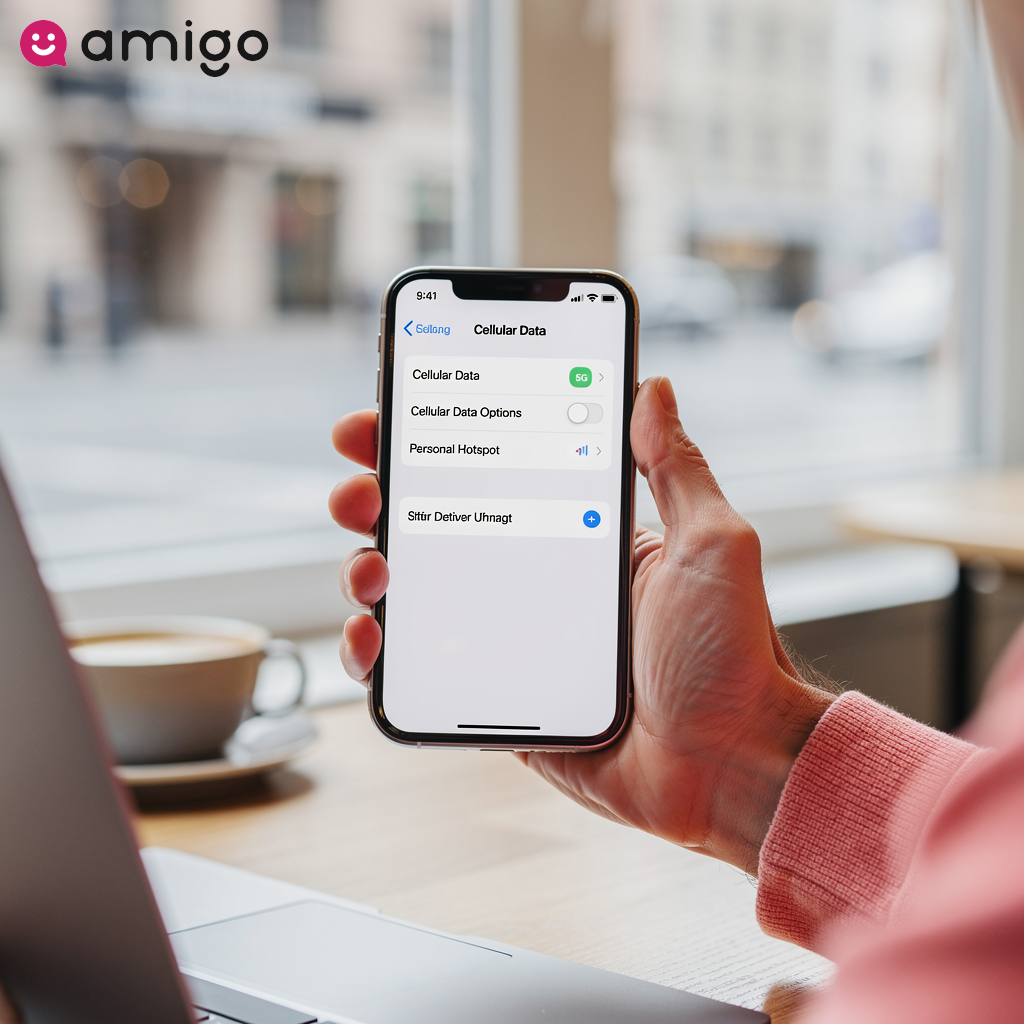
The personal hotspot feature allows an iPhone to share its cellular data connection with nearby devices, transforming the smartphone into a portable Wi-Fi router for your laptop, tablet, or secondary phone. To make this work, you'll need an active cellular data plan.
Your new hotspot uses your specific device name, which simply becomes the Wi-Fi name others will see when they connect.
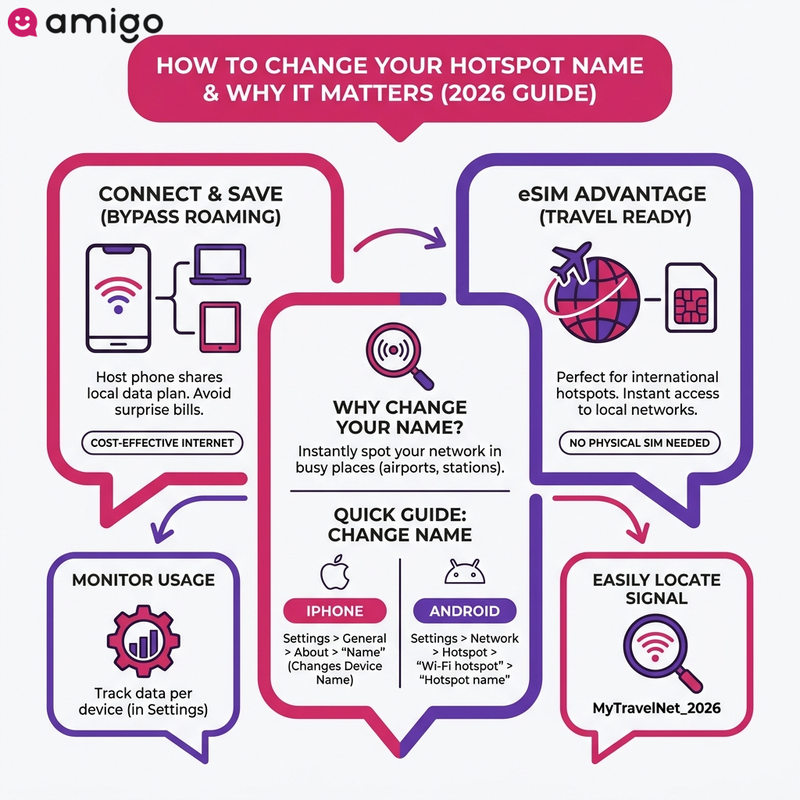
iPhone personal hotspot management and configuration
| Category | Description | Key actions and impact |
|
Changing hotspot name |
Modifying the device name changes the broadcasted Wi-Fi network name (SSID). |
|
|
Benefits of renaming |
A unique name stands out in crowded environments and improves overall connectivity. |
|
|
Impact on connected devices |
Changing the SSID instantly disconnects all currently linked devices and interrupts downloads. |
|
|
Troubleshooting visibility |
Fixes issues when the new hotspot name fails to broadcast to nearby devices. |
|
|
Security best practices |
Methods to secure the personal hotspot against unauthorized users piggybacking on data. |
|
|
Travel and eSIM usage |
Using the hotspot feature abroad to share prepaid travel data plans across multiple devices. |
|
Why should you change your iPhone device name?
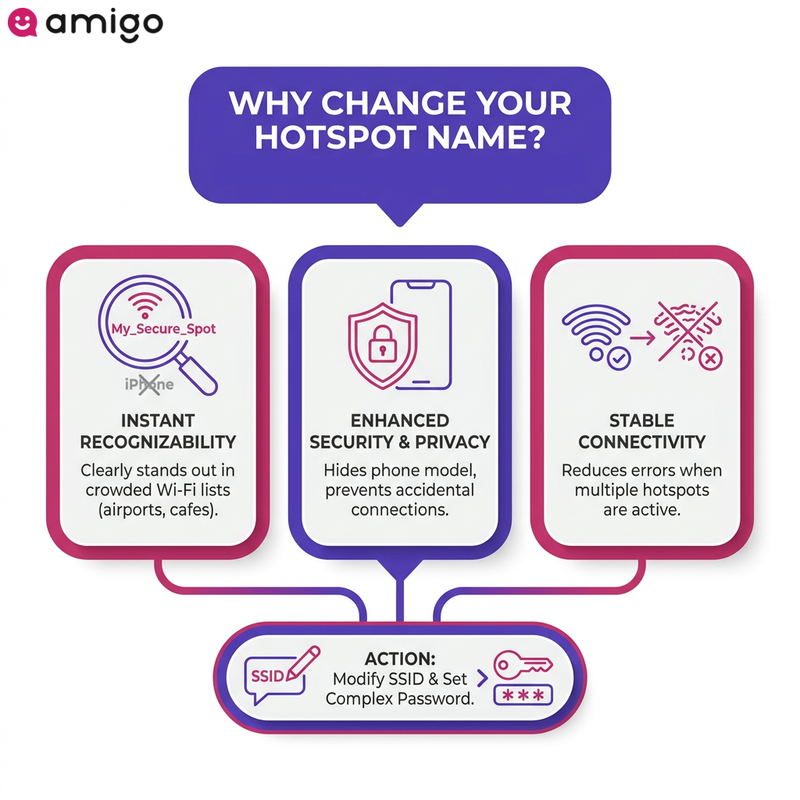
Changing the default device name makes your personal hotspot immediately recognizable. It also enhances network security and reduces connection errors. A personalized network name stands out clearly from default signals in a crowded Wi-Fi list.
Creating a unique mobile hotspot prevents accidental connections in crowded environments like airports, cafes, or train stations. I've lost count of how many generic "iPhone" networks I've seen while traveling, so this simple tweak is a real lifesaver.
Modifying the SSID also improves overall connectivity when multiple iPhone users turn on their hotspots at the same time.
How do you change the hotspot name on an iPhone?
To modify the hotspot name on an iPhone, you'll need to edit the device name in the general settings menu. As a quick pro-tip, I recommend keeping the new name short and easily recognizable. Follow these four steps to change your SSID:
- Open the Settings app.
- Navigate to General.
- Select About to locate the Name field.
- Tap the current name, type in your new name, and press Done.
Once you save it, your new hotspot name will show up right away to others, making it easier for your other devices to find and connect to your customized network.
How does the device name act as your network SSID?
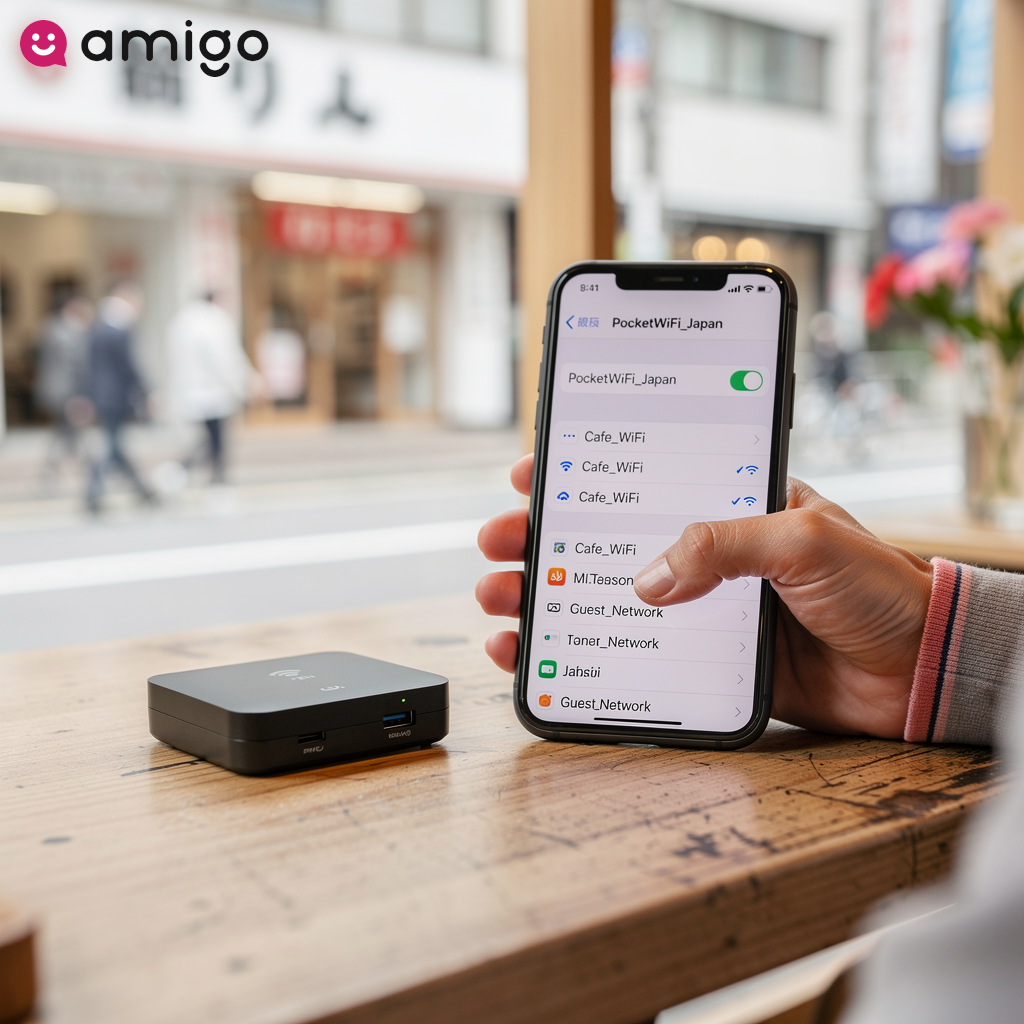
Your device name becomes your Wi-Fi network's name (SSID). External devices—such as smart TVs, gaming consoles, and desktop computers—read this broadcasted name so it can show up in their list of available Wi-Fi networks. This specific label appears prominently when the device you want to connect scans for a new internet connection.
Your iPhone broadcasts this name so other devices can find your hotspot and connect securely. If you're setting up a connection manually, you'll need this exact SSID to stay connected.
What happens to connected devices after an SSID modification?
Changing your SSID instantly disconnects all linked devices, interrupting anything they were downloading or streaming. Don't panic if your laptop suddenly drops offline during this process. To restore connectivity, you'll need to reconnect to the newly named Wi-Fi network on your other devices.
Toggling the hotspot off and on applies the new name. This requires any previously connected devices to reconnect and enter the password again. You will need to re-enter your password on all previously linked devices to re-establish the connection.
How do you connect Android, Windows, and Mac devices to the new network?
On a Mac or Windows PC, click the Wi-Fi icon in the menu bar or system tray, find your new iPhone name, and enter the password. On Android, navigate to Settings > Network & Internet > Wi-Fi to do the same. Just make sure your iPhone's hotspot is actually turned on so other devices can see it.
Once you spot the new network name on your secondary device, simply enter the password to get back online—provided your iPhone has an active cellular signal.
What should you do if the new hotspot name does not appear?
Sometimes your new hotspot name might not show up right away after you change your device name. If the new network fails to broadcast, follow these troubleshooting steps:
Does restarting the cellular data connection fix visibility issues?
Toggling the cellular data and hotspot sharing off and on often helps your phone broadcast the new name properly. A personal hotspot relies directly on an active cellular data connection to generate a shared wireless connection. Restarting this feed forces the operating system to apply recent naming changes, pushing the new network identification to nearby devices like tablets, laptops, and smartwatches.
Refreshing the internet connection helps the mobile hotspot show the new name. In my experience, this quick toggle solves the vast majority of hotspot visibility glitches. This simple tethering reset usually gets your other devices connected again.
When is a full network reset necessary?
A full network reset serves as a final troubleshooting step to get your new hotspot name to appear if standard restarts fail. Taking this step clears all saved network configurations—including stored Wi-Fi passwords and Bluetooth pairings—to fix stubborn connection issues on an iPhone. You can initiate this by going to Settings > General > Transfer or Reset iPhone > Reset, and selecting Reset Network Settings.
Be aware that this process wipes your network cache, meaning your phone will forget all previously saved Wi-Fi passwords and Bluetooth pairings. After the device reboots, the smartphone successfully broadcasts the updated name to allow you to connect normally.
How can you improve network security while tethering?
Ensuring a secure connection when sharing mobile data requires assigning a unique device name and using strong passwords. Network security improves when you hide what kind of phone you're using. A default identifier broadcasts the exact phone type to nearby users during tethering, but modifying the SSID removes this hardware information from the visible Wi-Fi list.
Setting a complex alphanumeric password secures the personal hotspot against unknown users. You can manage access effectively by sharing the password only with your own devices or friends. You can monitor the connection count at the top of your iPhone's screen to ensure no unauthorized users are piggybacking on your data.
How do you share prepaid travel data plans using a hotspot?
Activating the personal hotspot feature on a primary smartphone lets you share your travel data with all your other devices. If you've ever been hit with a surprise roaming bill after a trip, you know exactly how crucial this workaround can be. This allows you to bypass expensive roaming fees and manage all your connections in one place. A mobile hotspot uses local carriers and mobile network operators to provide a cost-effective internet connection. The host smartphone simply turns your phone's data plan into a Wi-Fi network for your laptop or tablet.
While traveling, you can easily manage data consumption across all your connected devices. Smartphone settings provide specific usage statistics, allowing you to monitor how much prepaid data each connected device consumes from active travel data plans. As long as you leave your hotspot turned on, the primary phone keeps all your devices online.
Can you use an eSIM to provide a mobile hotspot abroad?
An eSIM works perfectly for powering a hotspot while traveling internationally. As long as the mobile device supports the sharing feature, a smartphone can easily tether an internet connection using a digital travel SIM. This technology eliminates the need for physical SIM cards and gives you instant access to local networks. It’s the most convenient way to buy prepaid data directly from local carriers.
Travelers can customize their hotspot name to easily locate their signal in busy foreign environments like airports and train stations. The mobile hotspot keeps your laptop or tablet connected without requiring traditional SIM swapping. If multiple tourists broadcast networks simultaneously, a custom name helps you spot your network instantly. If you need an easy way to get online and share your connection abroad, an Amigo eSIM lets you set up a hotspot in minutes.
Sources
- https://support.plume.com/s/article/Client-device-sees-duplicate-SSIDs
- https://support.apple.com/en-us/111786
- https://www.totaldefense.com/security-blog/give-your-wi-fi-network-a-unique-name-for-better-security/