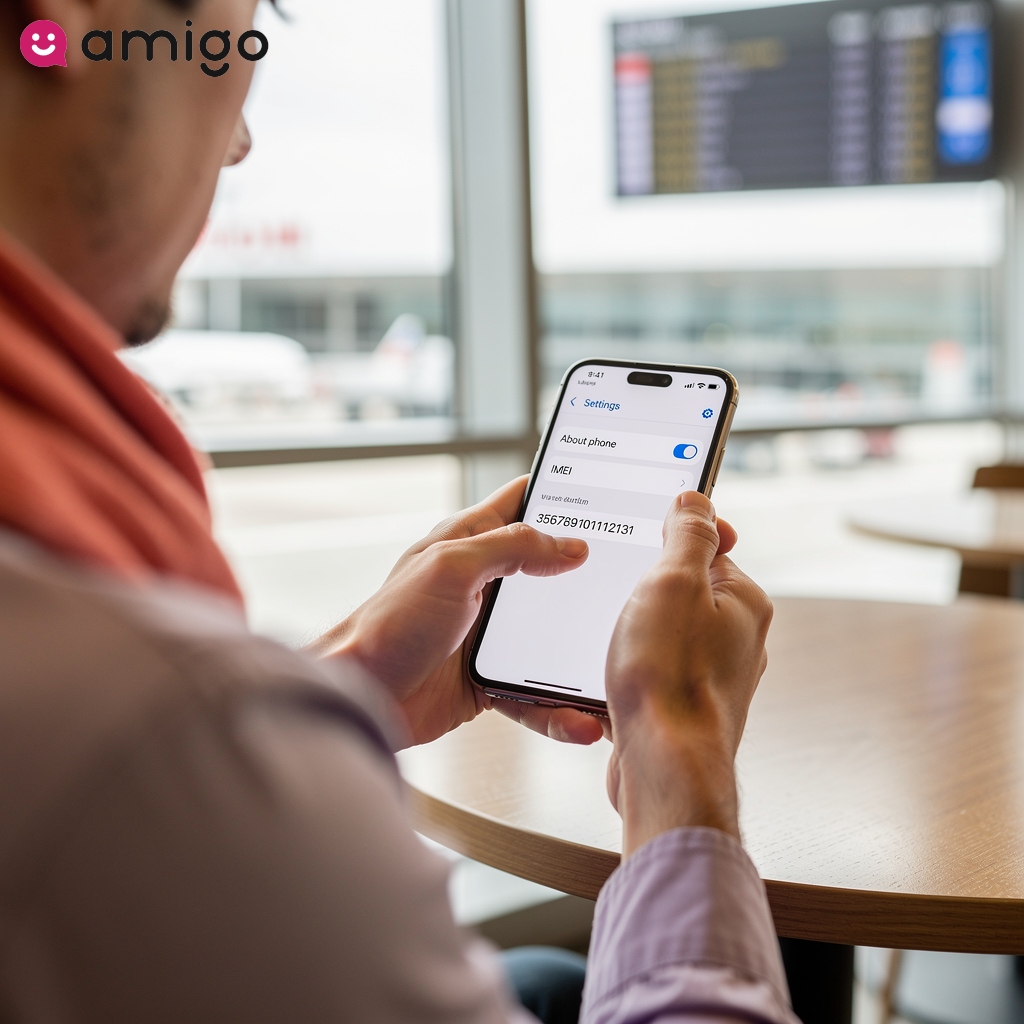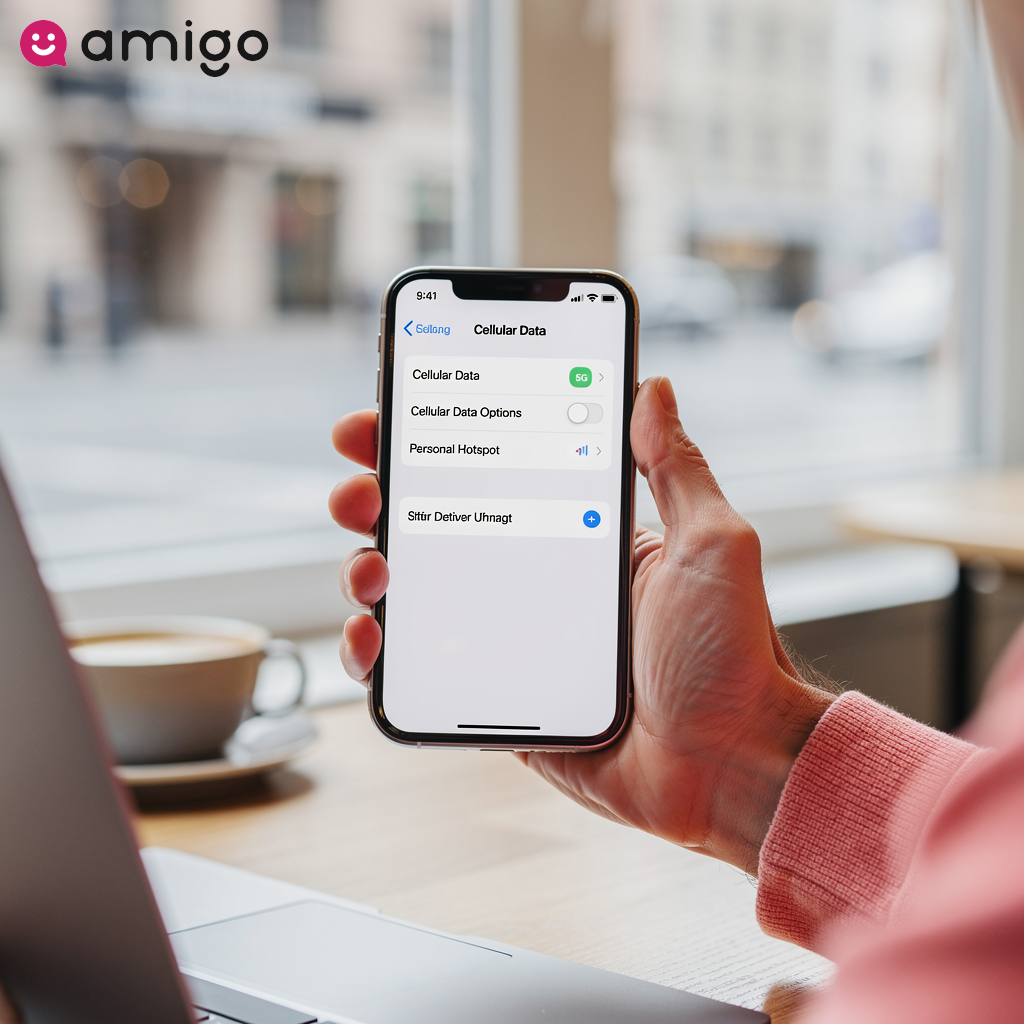


What is Low Data Mode on iPhone?
Low Data Mode is a built-in iOS feature, available since iOS 13, that restricts background network activity to conserve cellular and Wi-Fi data. It forces data-hungry apps to use less bandwidth in the background. Unlike turning off cellular data entirely, Low Data Mode keeps your iPhone fully connected to the network — it only limits background usage, so active apps, browsing, and navigation keep working normally. This primarily affects:
- Email clients
- Streaming media players
- Cloud storage platforms
Cutting down on background activity reduces the system's overall data consumption. You can configure this feature independently for your cellular data plan or a specific Wi-Fi network.
iPhone Low Data Mode impact and behavior changes
| Category | System impact | Affected apps and services |
|
Background activity |
Restricts background app refresh and automatic downloads. |
Apps only update content when actively opened by the user. |
|
Streaming & video calls |
Automatically reduces resolution and bitrate to standard definition to conserve bandwidth. |
|
|
Cloud syncing |
Temporarily pauses heavy synchronization processes and delays non-urgent push notifications. |
|
|
Messaging |
Stops automatic downloads of high-resolution media; standard texts and calls remain undisrupted. |
iMessage (waits for a tap before loading photos or videos). |
|
Battery & performance |
Indirectly extends battery life and improves active app responsiveness by reducing network requests. |
Minimizes workload on the device's processor and cellular radio without artificially slowing internet speed. |
Apple's own built-in apps handle Low Data Mode individually rather than all following one rule. The App Store turns off video autoplay, automatic app updates, and automatic downloads. Music turns off automatic downloads and drops out of high-quality streaming. Podcasts limits how often your feeds refresh and only downloads new episodes on Wi-Fi. News turns off article prefetching, so stories load only when you open them.
How does Low Data Mode change your iPhone's behavior?
Instead of letting apps run wild in the background, turning on Low Data Mode puts you in control. If you've ever received that dreaded "90% of your data used" text from your carrier, you know exactly how crucial this can be. It stops inactive apps from quietly eating up your data, lowering your overall usage.

How does Low Data Mode affect background app refresh and automatic downloads?
Low Data Mode prevents unexpected data spikes by restricting background activities like Background App Refresh and Automatic Downloads, meaning apps will only update their content when you actively open them.
How does Low Data Mode impact streaming quality and FaceTime?
Streaming apps and video calling services detect Low Data Mode and automatically reduce their resolution and bitrate to conserve bandwidth. This automatic adjustment restricts video and audio content to standard definition. Affected apps include:
- YouTube
- Netflix
- Apple Music
To minimize data usage during active sessions, video calling services will reduce your resolution. Because of this, videos and FaceTime calls display noticeable visual differences when you activate this feature for cellular data or Wi-Fi. Standard-definition streaming uses meaningfully less data per minute than HD, which is exactly the gap Low Data Mode is designed to capture on a capped or pay-per-GB plan.
What happens to iCloud syncing and push notifications?
Low Data Mode temporarily pauses cloud synchronization, such as automatic photo backups, and delays non-urgent push notifications by checking for new alerts less frequently. Speaking from personal experience, there's nothing worse than a 4K video automatically backing up to iCloud and wiping out your daily data limit. When enabled, your iPhone will automatically pause heavy syncing processes until a standard, unrestricted connection is available. Paused tasks include:
- Device backups
- Document syncing
- Photo library uploads
Your iPhone won't check for new data as often. This reduction causes potential delays in receiving updates like new emails and non-urgent alerts.
When should you enable Low Data Mode?
If you're stuck on a slow network or in an area with weak coverage, the iOS system improves device performance by reducing network requests. This ensures your active app—like Maps when you're navigating a new city—gets priority over hidden background updates.
Should you use Low Data Mode for limited mobile data plans?
Low Data Mode is highly effective for limited mobile data plans to avoid exceeding monthly caps. Surpassing a data limit can lead to expensive overage fees or carrier throttling, where your provider intentionally slows down your internet speed.
This feature stretches your monthly gigabyte allowance by restricting hidden background tasks, protecting you on capped contracts.
How does Low Data Mode prevent high data roaming fees?
I always make this my very first step before boarding an international flight. Low Data Mode saves money while traveling abroad by halting unexpected data consumption and preventing high roaming fees on partner networks. This feature blocks heavy background tasks like automatic app updates and cloud photo uploads.
Stopping these hidden operations protects limited prepaid travel data and prevents massive international bills.
Why enable Low Data Mode for a personal hotspot or metered Wi-Fi?
Low Data Mode prevents connected devices from rapidly draining the host's data allowance on tethered connections. You can also control data usage on notoriously restricted Wi-Fi networks, such as hotel connections or airplane internet.
The iPhone restricts data usage when you connect to a metered Wi-Fi network. In fact, iOS activates this automatically when your device connects to another user's personal hotspot.
How do you turn on Low Data Mode?
You can activate Low Data Mode directly through the iPhone Settings app. Because you can set this for cellular data or Wi-Fi independently, you'll find the toggles in slightly different spots depending on what you want to restrict.

How do you enable Low Data Mode for LTE, 4G, and 5G cellular data?
For LTE or 4G, follow these steps:
- Open Settings and tap Cellular.
- Tap Cellular Data Options.
- Turn on the Low Data Mode toggle.
If you're on 5G, the path has one extra stop:
- Open Settings and tap Cellular.
- Tap Cellular Data Options, then select Data Mode.
- Turn on Low Data Mode.
How do you enable Low Data Mode for specific Wi-Fi networks?
To restrict data on one specific Wi-Fi network, follow these steps:
- Open Settings and tap Wi-Fi.
- Tap the "i" (information) icon next to the connected network's name.
- Turn on the Low Data Mode toggle.
This feature is remembered per network, so it comes in handy on hotel Wi-Fi or airplane internet without touching your standard home Wi-Fi setup.
How do you configure Low Data Mode for Dual SIM and eSIM?
On devices with multiple lines, configure the data restriction independently for each active physical SIM or digital SIM profile. Managing settings in a Dual SIM environment requires selecting the specific cellular plan within the iPhone Settings app. Whether you're using a physical SIM or an eSIM, just select the line you want to restrict and toggle the Low Data Mode feature to keep that specific line's data usage in check.

You can restrict a travel eSIM without affecting your primary SIM by activating the feature only on the secondary profile. This is a great way to save your prepaid travel data without messing with your main number.
How do you turn off Low Data Mode?
To go back to normal, just head back into your Cellular or Wi-Fi settings and flip the switch off. Background app refresh, automatic downloads, and full-resolution media streaming will all resume immediately.
As soon as the feature is disabled, paused tasks like iCloud syncing for device backups and cloud photo uploads automatically resume.
Does Low Data Mode save battery life?
Yes, Low Data Mode indirectly extends your battery life. Constantly searching for signals and downloading data in the background drains your battery quickly. Stopping those tasks means your phone doesn't have to work as hard. As a quick pro-tip, I actually toggle this on alongside Low Power Mode when I'm at 10% battery and miles from a charger.
Pausing these background syncs and updates minimizes the workload on the device's processor and cellular radio. This means less energy is required to constantly search for and download new app content. This feature restricts background network use to preserve both data and battery power when operating your device away from a charger.
Does Low Data Mode affect call quality or iMessage?
Standard cellular communication, including regular text messages and phone calls, remains undisrupted. Low Data Mode reduces video call resolution and stops messaging platforms from automatically downloading high-resolution media, such as a background photo save or an automatic video play. Video conferencing tools like FaceTime and Skype lower their streaming quality to save bandwidth.
Apps like iMessage will wait for you to tap a photo or video before loading it. If you're in a highly active family group chat, this feature is an absolute lifesaver. This simple change lowers your overall data usage without interrupting your active voice calls.
Does Low Data Mode slow down your internet speed?
Low Data Mode doesn't artificially slow down your internet speed. This feature reduces the volume of requested data rather than capping the actual speed. Carrier throttling restricts the physical speed if you exceed a data limit. The iOS system dedicates all available bandwidth to the active application by stopping background tasks like downloads and software updates.
Pausing background activity allows active apps to perform faster and improves device responsiveness in weak coverage areas across both cellular data and Wi-Fi.
How does Low Data Mode complement your Amigo travel eSIM?
Low Data Mode maximizes the value of a prepaid international digital SIM by ensuring your data isn't wasted on background tasks like software updates or photo syncs. This is a critical strategy for stretching your Amigo travel eSIM data allowance abroad. Activating this feature prevents pending cloud backups from instantly depleting your newly purchased plan. Pairing an Amigo eSIM with Low Data Mode ensures your data goes exactly where you need it: active browsing, maps, and travel navigation.
Sources
- https://support.apple.com/en-us/102433
- https://www.sigmobile.org/mobicom/2015/papers/p40-chenA.pdf