

What does it mean when your iPhone says No SIM?
The "No SIM Card installed" alert means your iPhone can't detect or read the inserted card, which blocks access to the mobile network and cellular data. Because the Subscriber Identity Module (SIM) stores the authentication keys that connect your device to a wireless carrier, this notification triggers when your phone fails to communicate with the physical card's gold chip.
If you've ever stared at your screen in frustration when this alert pops up out of nowhere, you're definitely not alone. The error usually comes down to a missing card or an unreadable one. While a missing card simply means the tray is empty, an unreadable one points to a hardware failure or physical chip damage. Without a working SIM, you lose access to basic cellular features:
- Voice calls
- SMS messages
- Internet browsing
What is the difference between No SIM and Invalid SIM?
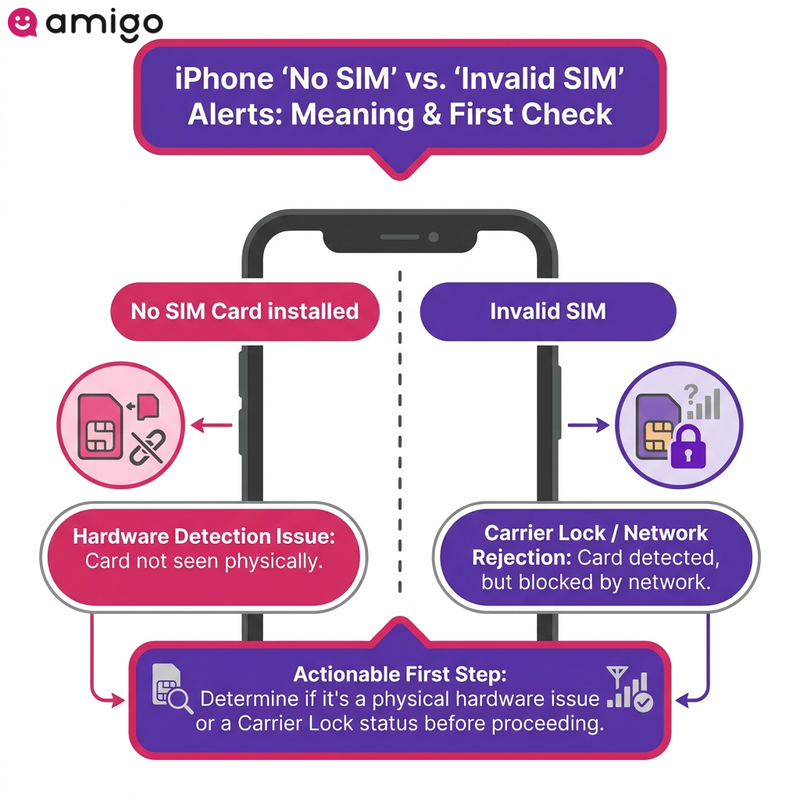
These errors highlight different problems. A "No SIM Card installed" alert signifies a completely undetected physical card. However, Apple notes that an "Invalid SIM" message means the device detects the card, but the mobile network rejects it. Often, an "Invalid SIM" alert indicates a carrier lock.
A third, separate message, "SIM Not Supported," points to a different problem altogether: it appears when you insert a SIM into an iPhone that's carrier-locked to another provider. Cleaning the card or resetting network settings won't help here. The only fix is unlocking the device, which usually means calling the original carrier that sold the phone.
SIM restrictions occur when a specific wireless carrier prevents the smartphone from authenticating an unauthorized network profile. This type of failure blocks your data, mimicking a complete SIM failure. To fix this, you first need to figure out if your hardware is broken or if your carrier is blocking you.
Why does your iPhone enter SOS mode?
Apple support documentation states your iPhone will automatically drop into SOS mode if it can't find a valid cellular connection (support.apple.com). This usually happens during a SIM failure or if your carrier plan lapses, completely blocking your standard mobile data and calls.
During this state, you will only be able to make emergency calls via other accessible networks. Apple limits this fallback to Australia, Canada, and the United States, so travelers outside those countries won't see the same emergency-only behavior. You will need to troubleshoot the hardware or reset network settings to restore standard mobile service.
iPhone No SIM error causes and troubleshooting
| Category | Description | Solutions & details |
|
Error types |
A "No SIM" alert means the physical card is completely undetected. An "Invalid SIM" message means the card is detected but rejected by the network. |
These errors block basic cellular features and trigger SOS mode, limiting the device to emergency calls via other accessible networks. |
|
Hardware issues |
|
Use a SIM ejector tool to safely remove the tray. Inspect for dirt, clear away debris, and ensure the tray closes completely and sits flush. |
|
Software bugs |
Temporary glitches, outdated operating systems, or corrupted data transfers can cause the device to falsely think it lacks a SIM card. |
|
|
Carrier restrictions |
A carrier lock ties the smartphone's software to a specific wireless carrier, rejecting unauthorized network profiles. |
Contact your wireless carrier to verify your account status, remove SIM restrictions, or order a replacement physical card. |
|
eSIM alternative |
Embedded SIM (eSIM) uses a programmable chip soldered directly into the motherboard, eliminating physical card damage and loose trays. |
Ideal for international travel. Providers like amigosim.com offer instant prepaid travel data plans via QR code, avoiding expensive roaming charges. |
What causes the No SIM card installed error?
A few common physical culprits can block your phone from reading the card:
- Trapped dust
- Damaged gold contacts
- A loose SIM card tray
A faulty SIM slot is a separate, less obvious culprit. On models from the iPhone XR onward, the slot is a modular part; on older models, it's soldered directly to the logic board. Either way, it's a common entry point for liquid, and even the gasket Apple has used since the iPhone 7 doesn't fully protect it. Check the liquid damage indicator inside the slot before assuming the card itself is the problem.
Logic board damage is rarer but worth knowing about, especially after a hard drop. Most iPhones from the X onward split cellular functions across two stacked boards connected through an intermediary board, and a hard impact can sever that connection. If you've cleaned the card, reset network settings, and reinstalled every update with no change, a bent, burnt, or corroded board is the likely cause, and that's a job for a repair shop with microsoldering experience, not a DIY fix.
Can a carrier lock cause SIM restrictions?
The most common reason a new physical SIM card fails in a restricted device is a carrier lock that ties the smartphone to a specific wireless carrier. This means your phone's software is programmed to reject any SIM card from a different network.
The system denies activation and blocks cellular data if the network detects an unsupported provider. Your phone will display an "Invalid SIM" message if you insert a foreign card into a locked device. Always check if your phone is unlocked before trying a new SIM.
Do software bugs disrupt mobile connectivity?
A software problem can easily cause a device to think it lacks a SIM card. Temporary glitches and outdated operating systems can stop your phone from reading the hardware. These system bugs trigger a false "No SIM Card installed" error, even when the physical card is perfectly fine.
Not every case starts on your phone, though. Carrier-side network outages or scheduled maintenance can make a SIM look inactive or undetected, sometimes only in specific locations or on specific bands. If that's the cause, the error clears on its own once the carrier's network stabilizes, and no reset or card swap is needed. Checking your carrier's outage status is worth doing before you touch any settings.
Outdated software or corrupted data transfers disrupt connectivity and block cellular data. If a software bug is the culprit, a quick reset or update usually does the trick. Here is what to try:
- Install a software update
- Apply a carrier settings update
- Reset your network settings
How can you fix the No SIM alert on your iPhone?
To get your signal back, you'll want to work through a mix of hardware checks and software resets.
Does airplane mode fix network glitches?
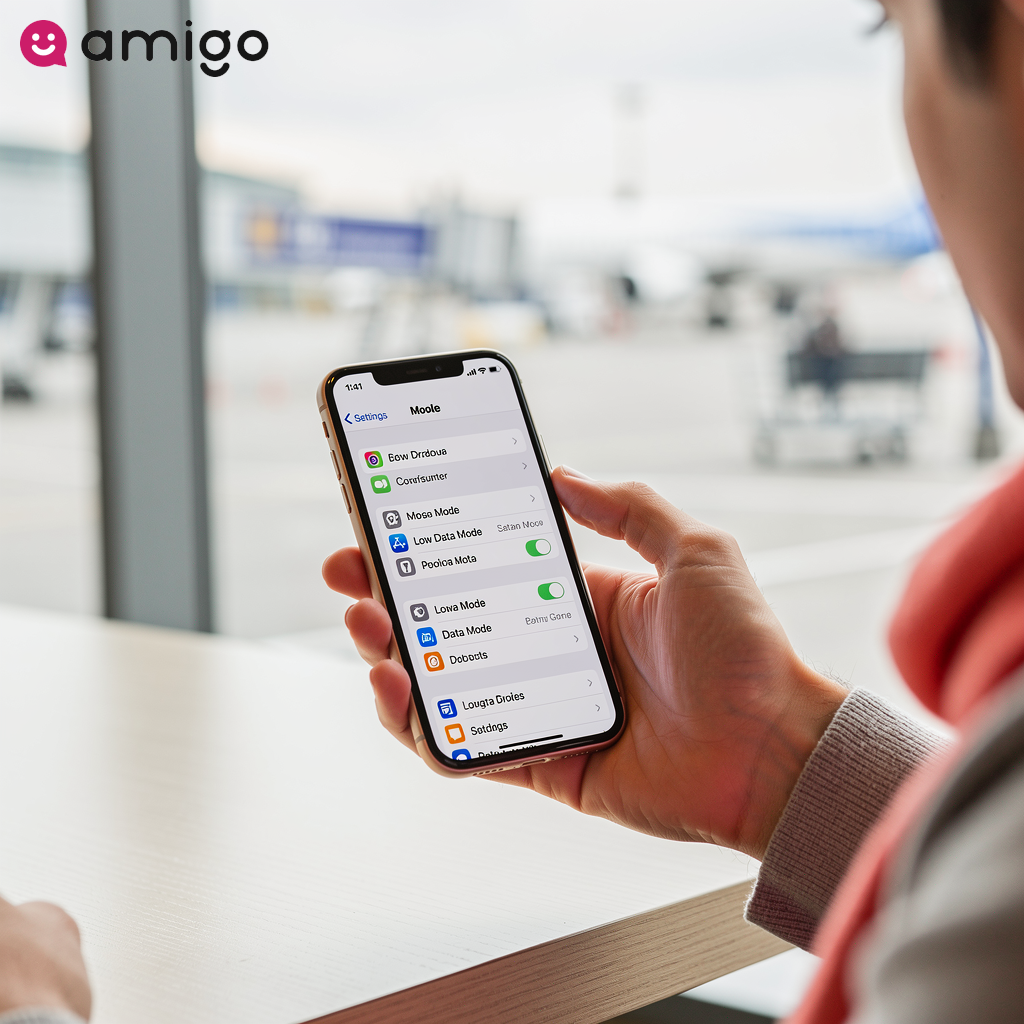
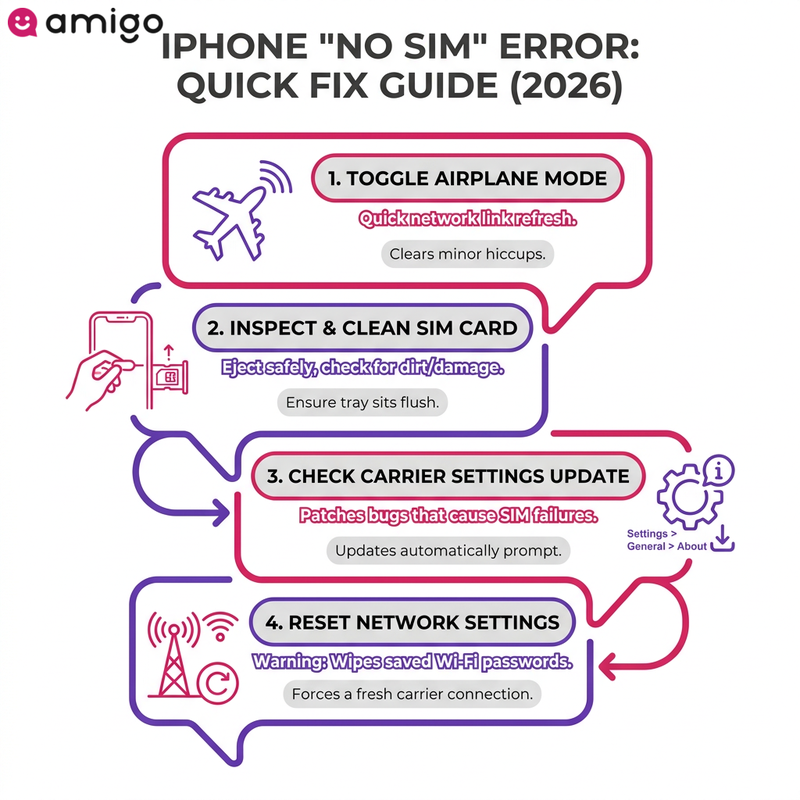
Before you panic and assume your phone's hardware is broken, try this quick trick first. Toggling Airplane Mode forces the device to re-establish its link to the mobile network. A simple refresh serves as a first-line troubleshooting step for a sudden SIM failure, often clearing minor software hiccups that cause the "No SIM Card installed" error.
A quick reset restores cellular data and mobile connectivity if your signal suddenly drops. It resolves temporary problems with the physical SIM card without modifying complex network settings.
How do you use a SIM ejector tool to inspect the SIM tray?
To safely remove and inspect your SIM card, grab a SIM ejector tool (or a paperclip). Push it straight into the pinhole to pop the tray open without damaging the internal pins. I always recommend doing this over a flat, well-lit surface so you don't accidentally drop the tiny card. Inspect the nanoSIM for dirt and examine the tray for bending.
Make sure the tray closes completely and sits flush, as a loose mechanism will trigger the alert. Often, simply clearing away debris from the SIM card and securing the connection is enough to get you back online.
How do you apply a software update and carrier settings update?
Software and carrier updates patch bugs that can cause SIM failures. They also refresh the background files your phone uses to connect to the network. Carrier settings are essential for connecting a device to a specific wireless network.
To check for a carrier update, go to Settings > General > About on your iPhone. If an update is available, a prompt will automatically appear on your screen asking you to install it.
How do you reset network settings?
Resetting your network settings clears out corrupted data and restores your default cellular configurations. Keep in mind that doing this will wipe your saved Wi-Fi passwords and custom VPN profiles, so you'll need to reconnect to your usual networks afterward.
This reset forces your phone to establish a fresh link to your carrier, which often clears persistent SIM errors and restores your data connection. It's also one of the more reliable ways to pull your iPhone out of SOS mode, since it forces a fresh handshake with your carrier's network instead of just retrying the old, broken connection.
Can a factory reset resolve persistent SIM failures?
A complete system wipe resolves stubborn SIM card errors when standard software fixes fail. A factory reset differs from modifying network settings because it erases all device data to eliminate deep-rooted bugs. Consider this your last resort before assuming the hardware is broken.
While a successful wipe restores mobile connectivity, it permanently deletes personal data. The wipe includes saved contacts, downloaded applications, and personal photos, making a backup essential before proceeding.
Can switching to an eSIM prevent physical SIM errors?
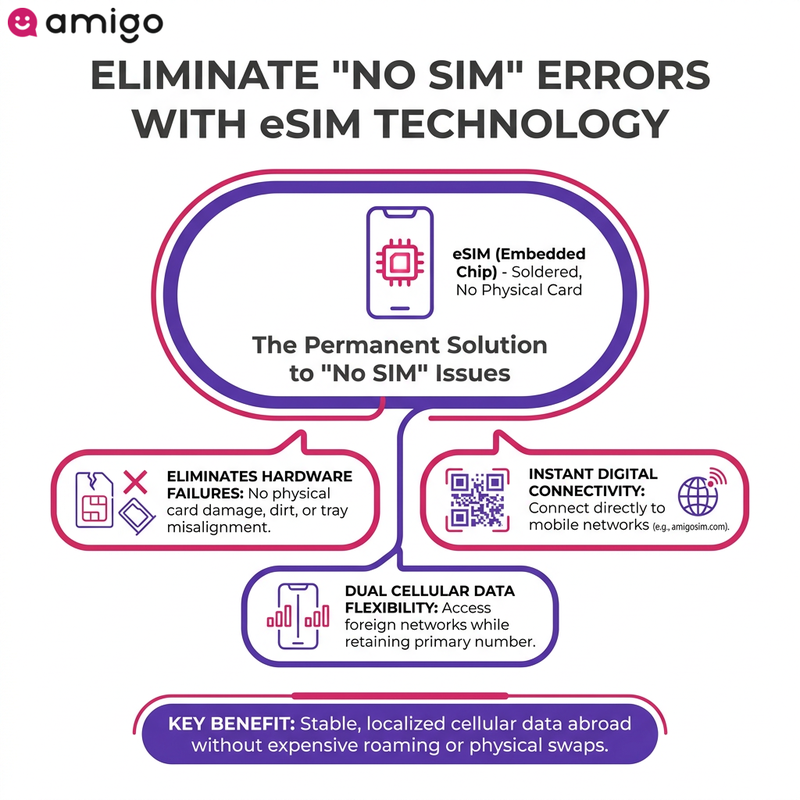
If none of the steps above clear a persistent SIM error, it's worth considering a fix that removes the physical card from the equation entirely. According to the GSMA, Embedded SIM (eSIM) technology uses a programmable chip soldered directly into a smartphone's motherboard (gsma.com). Since the chip is built directly into your phone, there is nothing to lose, scratch, or insert incorrectly. This completely eliminates the dreaded "No SIM" error caused by a loose tray or damaged card.
Switching to an embedded digital SIM avoids specific hardware problems like physical card damage, dirt accumulation, and tray misalignment. Providers like amigosim.com let you connect to a mobile network entirely digitally—no physical card required. It's a perfect backup plan if your physical SIM suddenly fails.
How does eSIM setup work for international travel?
An eSIM allows you to instantly download foreign data plans without swapping a physical card. Speaking from personal travel experience, skipping the airport kiosk lines to buy a local SIM is an absolute game-changer. Setting up an eSIM for international travel involves purchasing prepaid travel data, scanning a QR code, and completing the activation process.
Digital providers offer these packages as an instant mobile connectivity solution. An electronic setup avoids the risk of losing a primary chip while abroad. By enabling dual cellular data functionality, you can access a foreign network while retaining the original wireless carrier number.
When should you contact your wireless carrier?
It's time to call your carrier when basic hardware and software troubleshooting fails to restore the connection. You should contact your wireless carrier to verify account status or request assistance if the system indicates a carrier lock. You'll typically need their help to verify an active cellular plan, request the removal of SIM restrictions (such as a domestic network lock or international roaming block), and order a replacement physical card.
If your account is suspended or unpaid, your carrier will block your network access. A quick call to customer support can confirm your account status. They can also help unlock your device if you are seeing an "Invalid SIM" error, or mail you a replacement card if yours is damaged. A phone stuck in SOS mode even after a network reset is also a sign to make this call rather than keep resetting the device — at that point, the cause is usually account or coverage-related, not something you can fix from the Settings app.
Sources
- https://support.apple.com/en-us/108914
- https://support.apple.com/en-us/120000
- https://www.gsma.com/solutions-and-impact/technologies/esim/