

What does the "not registered on network" error mean?
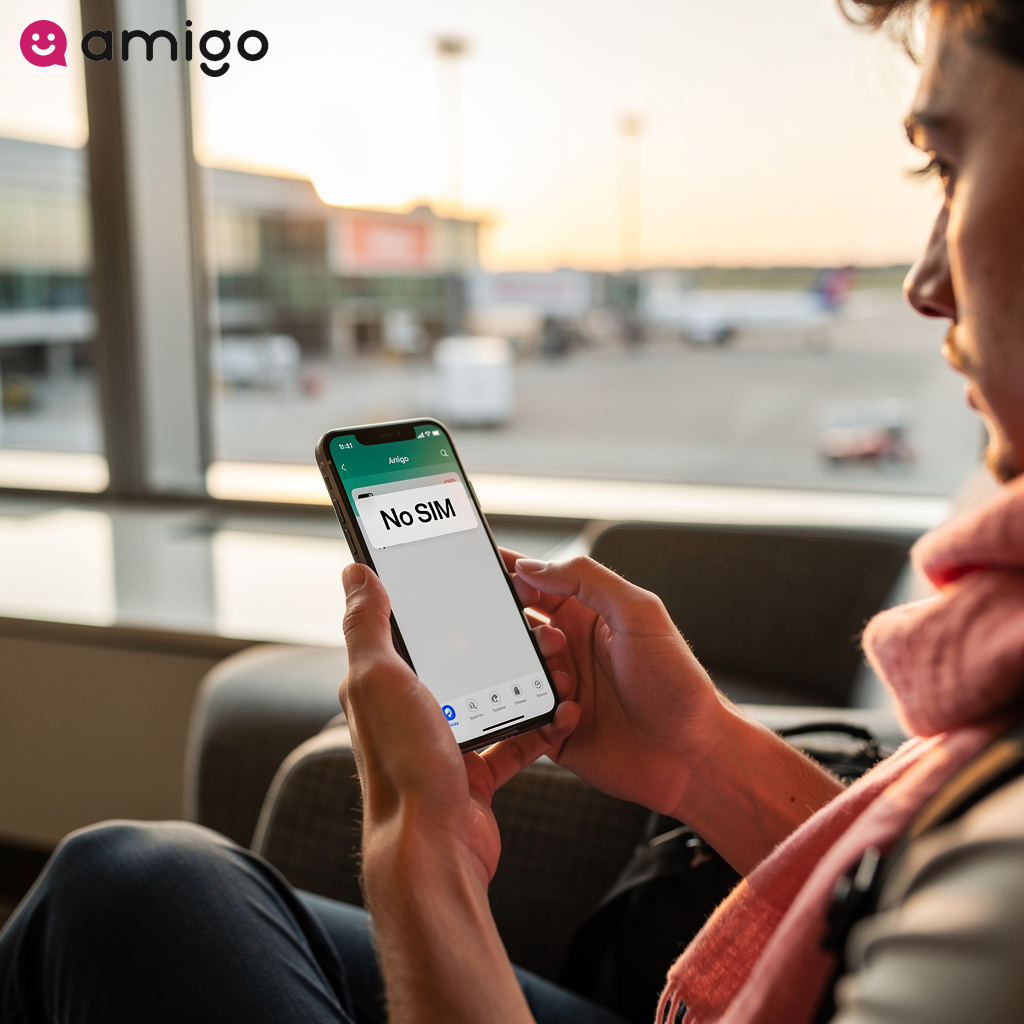
The "not registered on network" error means your device can't connect to a cellular network. This failure blocks standard communications, meaning you won't be able to:
- Make voice calls
- Send SMS texts
- Access mobile data
If full network access fails, your device enters an "Emergency calls only" state. Emergency calls still work because your phone can still ping any nearby tower for emergencies, even without a standard signal.
Solutions for the "not registered on network" error
| Troubleshooting step | How it works | Key details |
|
Toggle airplane mode |
Acts as a rapid reset for a phone's radios by disabling all wireless transmissions. |
Forces a connection refresh in under 10 seconds without requiring a full reboot. |
|
Clean and reseat SIM card |
Ensures the physical connection required for successful network registration. |
|
|
Manually select network operator |
Forces the phone to connect to a specific, available carrier rather than picking automatically. |
Bypasses infinite scanning loops and stabilizes signal during active roaming. |
|
Change network mode |
Manually switches signal generation from a fluctuating 5G connection to 3G or 2G. |
Stabilizes the connection by prioritizing reliability over speed. |
|
Install software updates |
Installs patches that fix operating system bugs and corrupted firmware. |
Ensures the internal modem can properly authenticate with modern cell towers. |
|
Reset network settings |
Returns cellular, Wi-Fi, and Bluetooth settings to factory defaults. |
Clears corrupted configurations without deleting personal files like photos or apps. |
|
Update APN settings |
Updates the exact address your phone needs to route mobile data. |
Resolves persistent connectivity issues when switching local operators or using a travel eSIM. |
|
Perform a factory reset |
Completely wipes all device data, personal files, and system configurations. |
The absolute last resort for deep software glitches and stubborn network registration failures. |
|
Contact mobile carrier |
Escalates the problem to network operators to identify backend issues. |
|
Why is your phone not registered on a network?
This usually happens for one of a few reasons:
- Hardware defects
- Software glitches
- Carrier restrictions
Hardware defects, like a loose SIM card, often cause this error by breaking the physical connection, while software glitches can block the phone from authenticating with the network.
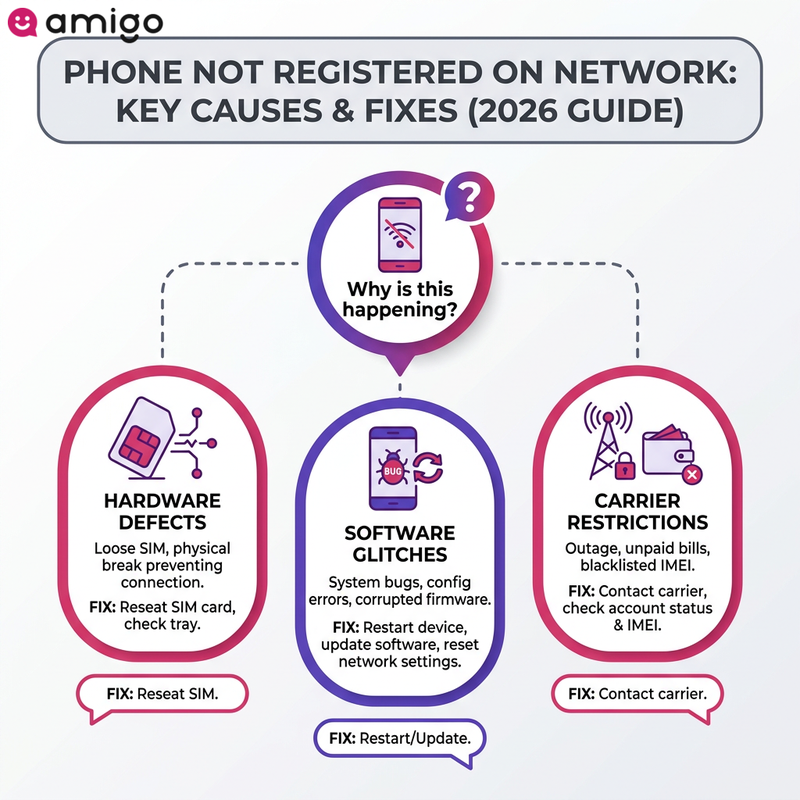
Corrupted firmware, system bugs from recent updates, or configuration errors can easily disrupt the connection process. Your carrier might also be blocking access. If there's a network outage in your area, it will prevent device registration entirely. Mobile carriers may also implement account restrictions for administrative reasons, such as unpaid bills or blacklisted IMEI numbers.
How can you fix the "not registered on network" error?
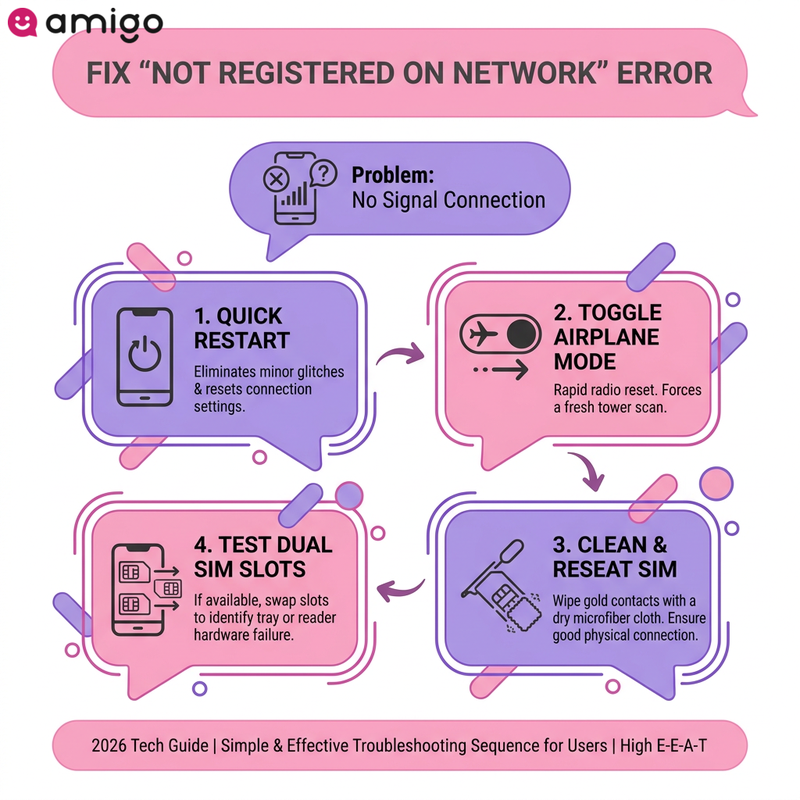
I've been stranded without a signal more times than I can count, so I know exactly how frustrating this error can be. Don't panic—fixing this is usually just a matter of process of elimination. The best approach is to start with simple fixes, like a quick restart, before moving on to deeper system resets. Simply powering a phone off and on eliminates minor software glitches and resets active network connection settings.
How does airplane mode refresh your cellular connection?
When you toggle airplane mode, it acts as a rapid reset for a phone's radios by disabling all wireless transmissions. Turning it back off prompts the device to scan for the nearest cell tower and establish a fresh connection. It's the perfect first troubleshooting step because it forces a connection refresh in under 10 seconds without a full reboot. If it works, your signal bars and data will pop right back up.
How should you clean and reseat your SIM card?
By removing, cleaning, and reseating the SIM card, you ensure the physical connection required for successful network registration. Use a standard ejector tool to safely open the SIM card tray. When you pull it out, look for:
- Dust accumulation
- Visible damage
- Age-related wear
A dusty or misaligned SIM card prevents the reader from identifying your device to the cellular network, directly blocking mobile data and causing a total loss of signal. Carefully wiping the gold contacts with a dry microfiber cloth can help your phone read the card properly again. In my experience, a quick wipe fixes the issue more often than you'd expect. If your phone supports dual SIM functionality, testing an alternate tray slot helps identify specific hardware failures.
How do you manually select a network operator?
If your phone is stuck in an infinite scanning loop, you can bypass this by manually selecting a network operator. This forces the phone to connect to a specific, available carrier. Phones usually pick networks automatically, but forcing a manual connection can snap your device out of a glitch when it gets stuck on a weak or incompatible network.
When you navigate to the Network Operators menu, it allows you to choose a specific carrier from a list of active signals rather than letting the phone decide. Taking control like this can get you back online if poor coverage or active roaming disrupts standard connections. Forcing a direct carrier connection stabilizes signal strength during troubleshooting.
How can changing your network mode resolve signal issues?
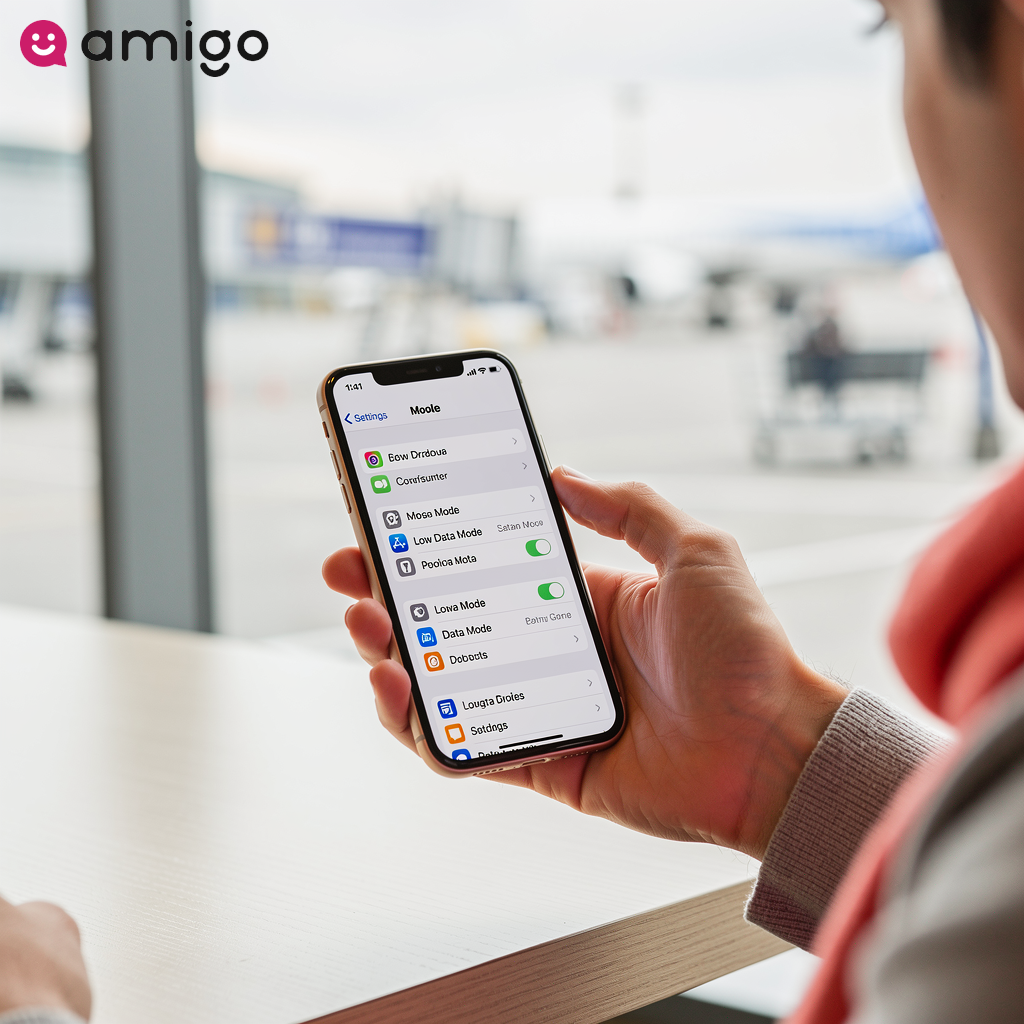
Your phone connects to different signal generations (like 5G, LTE, or 3G). If the 5G signal fluctuates in your area, manually switching your network mode to 3G or 2G can stabilize the connection. By prioritizing reliability over speed, you can often bypass registration errors and maintain basic access to calls and data.
How do software updates fix connectivity bugs?
A software update installs patches that fix operating system bugs and corrupted firmware responsible for network registration failures. Keeping your phone updated ensures its internal modem can actually talk to modern cell towers. Outdated software often contains bugs that block network authentication. Installing the latest update clears out these glitches and patches the firmware, giving your phone a clean slate to reconnect.
Updates can fix several common issues, including dropped mobile data and inconsistent signal reception. Always check for updates before assuming your phone is broken.
How do you reset your device's network settings?
If you reset your network settings, it clears out corrupted configurations by returning all three core wireless preferences—cellular network, Wi-Fi, and Bluetooth settings—to their factory defaults. Starting fresh like this often clears out the hidden bugs causing your registration errors.
This procedure clears persistent connectivity issues without deleting personal files, such as stored photos and downloaded apps. Once it reboots, your system will automatically revert to the default Automatic Network Selection state.
It puts your APN and network modes back to exactly how they were out of the box if previous manual adjustments blocked mobile data. This reset provides a deeper fix when standard methods fail. Once the phone reboots, it will automatically try to reconnect to your carrier's network. Make sure you have your passwords handy before taking this step. You'll just need to manually re-enter saved Wi-Fi passwords to restore non-cellular internet connections.
How can updating APN settings restore mobile data?
Think of Access Point Name (APN) settings as the exact mailing address your phone needs to send and receive data. They act as the gateway between your device and the internet. If it's wrong, your phone might connect to the network for voice calls, but it won't know how to route your mobile data.
This usually happens in two situations: switching local network operators and installing a travel eSIM for roaming. If the APN is wrong, your phone can't authenticate. Typing in the correct details gives it the exact address it needs. If automatic configurations fail, manually updating these text fields resolves persistent connectivity issues.
Does a factory reset fix persistent network errors?
After attempting to reset network settings and install software updates, a factory reset is the ultimate troubleshooting step. It completely wipes all device data—including personal files, downloaded applications, and system configurations—making it the absolute last resort for stubborn network registration failures.
A factory reset remedies deep software glitches and corrupted system settings that standard resets can't fix. The process restores the phone to its original state. You should only do this if all other software and hardware diagnostics fail. Wiping the device forces a completely new authentication process across mobile networks, re-establishing connections with network operators if severe system errors previously disabled mobile data.
Can hardware damage prevent network registration?
Physical damage to internal components can permanently prevent a phone from completing network registration. This kind of damage usually happens after dropping your phone or getting it wet. These incidents destroy the delicate internal connectivity hardware required to access a cellular network.
For example, a damaged SIM card reader will fail to recognize a perfectly functioning SIM card. When this happens, the physical link to the network is completely cut. The device generates a permanent "not registered on network" error if the internal reader can't extract subscriber data from the SIM card, blocking all access to mobile data and dropping your signal entirely.
A broken internal antenna will cause the exact same problem. The internal antenna is responsible for picking up radio frequencies and keeping you connected to the local network. Software updates cannot resolve these physical defects. If internal hardware fails, professional repairs are the only way to get your signal back.
How does roaming affect network registration?
Network registration errors frequently occur during international travel when a device fails to automatically connect to an authorized partner carrier. I see this happen all the time when people cross borders on trains or land at a new airport. When you roam, your phone is trying to piggyback on a foreign network. This connectivity method relies entirely on established provider agreements, such as international data pacts and voice service contracts.
These contracts allow devices to communicate with foreign network operators. But automatic network selection frequently fails when a user enters new geographic regions, such as foreign countries or remote border zones. Phones often struggle to identify the correct partner carrier across unfamiliar mobile networks.
This authentication failure directly blocks access to mobile data and eliminates signal strength. Manually selecting a network is often the best fix if the smartphone fails to pick an authorized partner carrier automatically. Bypassing the automatic search resolves persistent connectivity issues caused by active roaming. By doing this, you force a direct link to the approved carrier, ensuring successful network registration across local infrastructure.
How can a travel eSIM help when local networks fail?
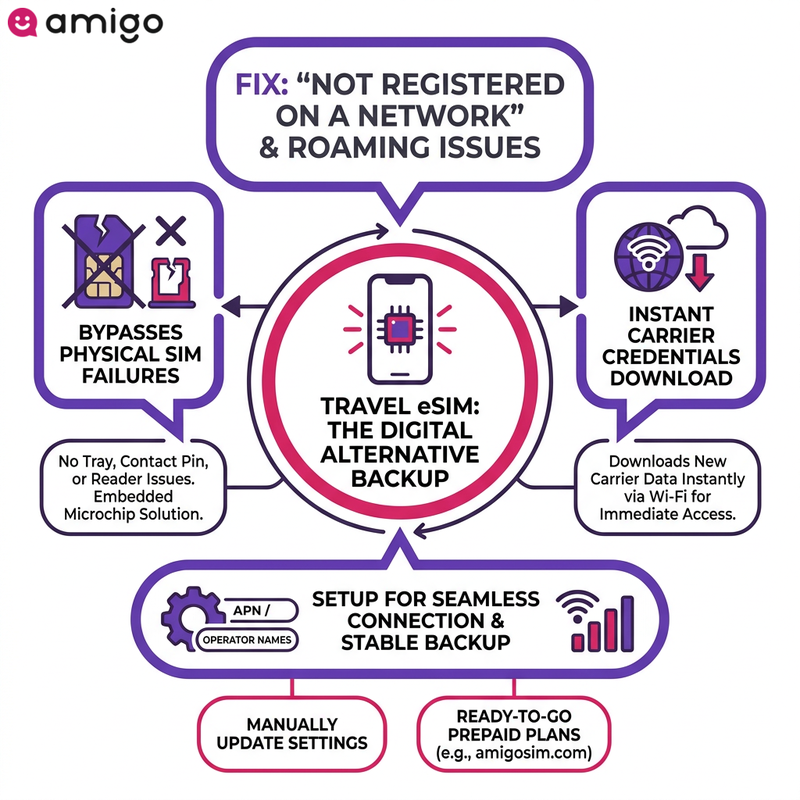
A travel eSIM functions as a reliable digital alternative for mobile data if a main physical SIM fails to establish network registration abroad. This embedded technology bypasses physical SIM card tray issues entirely by using a microchip soldered directly into the smartphone, meaning you don't have to worry about damaged card readers and dusty contact pins.
Travel eSIM providers offer a stable secondary data connection during international roaming if standard mobile networks reject the main carrier. Think of it as a reliable backup for restoring network coverage because it downloads new carrier credentials instantly over Wi-Fi. Devices can establish immediate access to a cellular network even if persistent connectivity issues block traditional physical cards.
Activating this secondary connection sometimes requires manually updating specific text fields, such as APN settings and network operator names. Providers like amigosim.com offer prepaid travel eSIMs that you can download and activate instantly from anywhere. Once set up, you'll have a seamless backup connection ready to go.
When should you contact your mobile carrier for support?
If you've tried all the troubleshooting steps above and still can't get a signal, it's time to contact your mobile carrier. Nobody loves waiting on hold, but sometimes it's your only option. You should escalate the problem to network operators if hardware resets and software updates don't resolve persistent network registration errors. This escalation identifies issues originating on the carrier's end rather than the physical smartphone. Usually, the carrier is dealing with one of these problems: active carrier restrictions, provisioning errors, and temporary infrastructure failures.
Carrier support possesses the administrative tools required to fix these backend problems. Representatives can immediately remove carrier restrictions if they accidentally blocked your account. Network operators can also verify widespread infrastructure failures if a total loss of signal stems from a local outage, explaining sudden drops in coverage in your specific location. Support agents can reset account provisioning to restore access to mobile data and voice services. Often, a quick reset on their end is all it takes to get your signal back.
Sources
- https://www.gsma.com/get-involved/working-groups/terminal-steering-group/imei-database/
- https://www.iotforall.com/esim-hardware-for-the-future
- https://docs.oracle.com/en/industries/communications/eagle/46.9/stateful-applications-user-guide/feature-description1.html