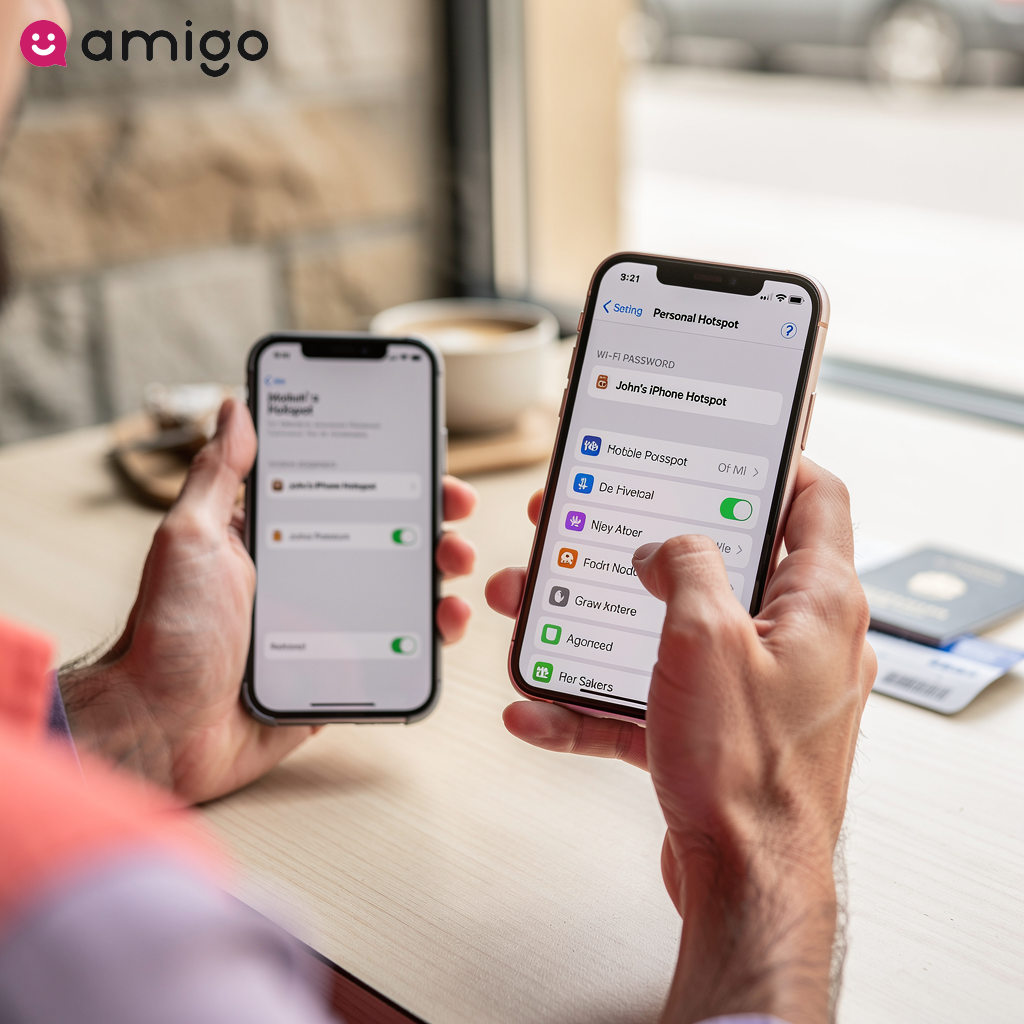


What does emergency SOS mode mean?
Emergency SOS mode means your device doesn't have a normal cell signal but can still dial emergency numbers using other available carrier networks. You'll lose access to regular phone calls, text messages, and mobile data.
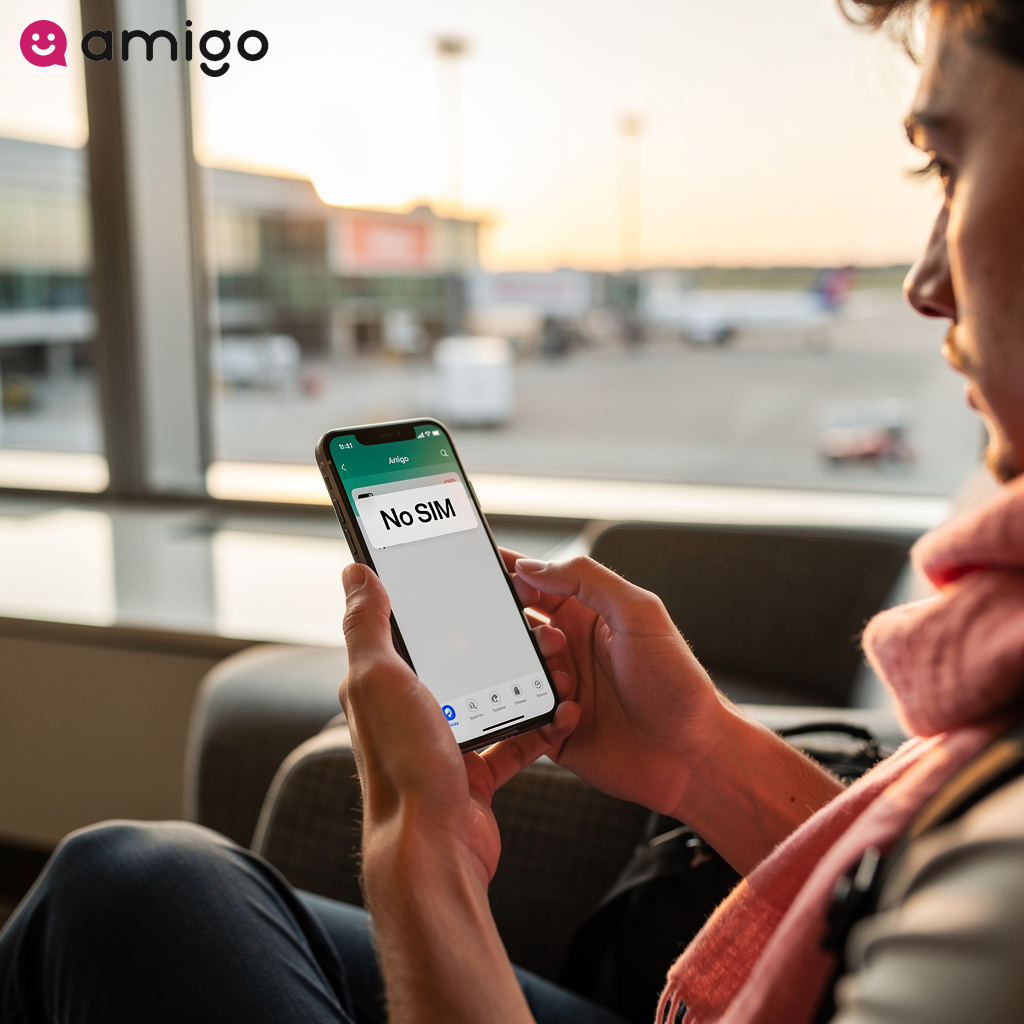
Devices running iOS and iPadOS display an SOS icon in the status bar when primary LTE or 5G networks become unavailable. You'll usually see this alongside a No Service or Searching indicator.
Causes and solutions for phone SOS mode
| Problem category | Common causes | Recommended solutions |
|
Network and coverage |
|
|
|
Software and settings |
|
|
|
SIM card issues |
|
|
|
International travel |
|
|
|
Hardware and system failure |
|
|
Why does your phone show SOS or no service?
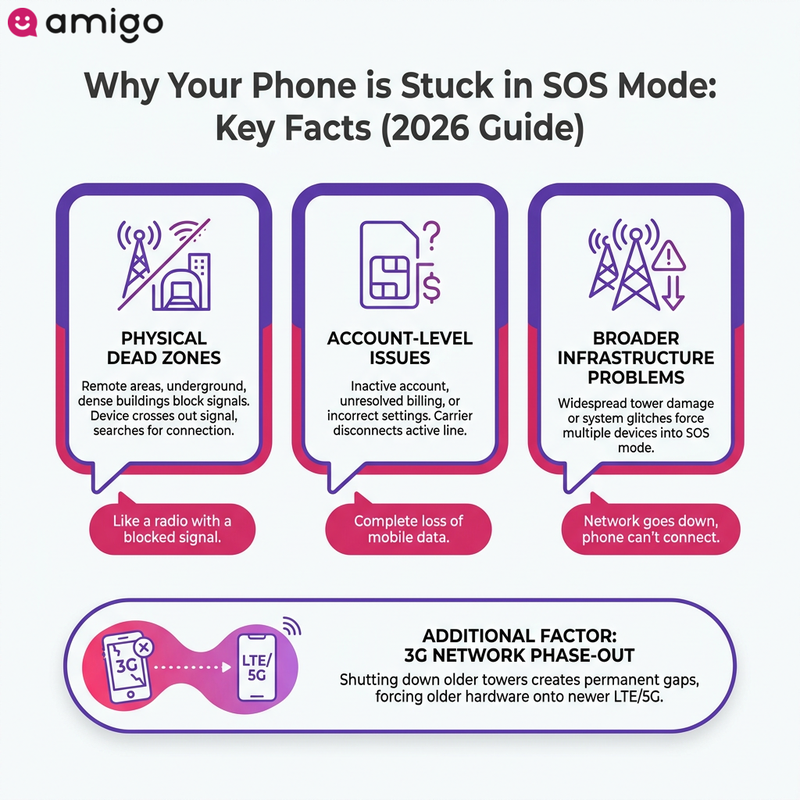
Seeing that little SOS icon when you're expecting to send a quick text can be incredibly frustrating. When a smartphone displays SOS mode or a No Service indicator, it usually comes down to one of three things:
- Physical dead zones
- Account-level issues
- Broader infrastructure problems
Physical barriers and geographic isolation create dead zones—such as remote rural areas, underground tunnels, and dense concrete buildings—where a device loses its cellular connection. Think of your phone like a car radio tuning into a station; if thick concrete or distance blocks the broadcast, it keeps scanning the dial until it finds a clear signal. When you enter a location with zero signal, you'll see a Searching status while your phone looks for alternative 5G networks or LTE bands.
Account-level issues, such as an inactive carrier account, unresolved billing problems, or incorrect data settings, disconnect the device from the cellular network entirely. You'll experience a complete loss of mobile data if your carrier suspends the active line.
Can a cellular service outage cause SOS mode?
Widespread cellular service outages force multiple devices into SOS mode simultaneously. If your carrier's network goes down due to a damaged tower or a system glitch, your phone won't be able to connect.
These events cause a complete loss of mobile data, LTE, and 5G networks. The device displays a Searching or No Service indicator before defaulting to an emergency-only state if it can't reach alternative networks. During a widespread outage, you will need to rely on Wi-Fi calling until your carrier repairs the network infrastructure.
Does the 3G network phase-out affect signal strength?
The 3G network phase-out creates permanent coverage gaps in specific regions. By shutting down older cell towers, carriers force older hardware to connect to newer technologies like LTE and 5G networks.
As a result, older phones that lack modern cellular support will drop to a No Service status, eventually defaulting to SOS mode in areas without upgraded towers.
How do i get my phone out of SOS mode?
Getting your phone out of SOS mode is usually a process of elimination. Start with the easiest, quickest fixes below before moving on to more complex solutions.
How does airplane mode restore the cellular network?
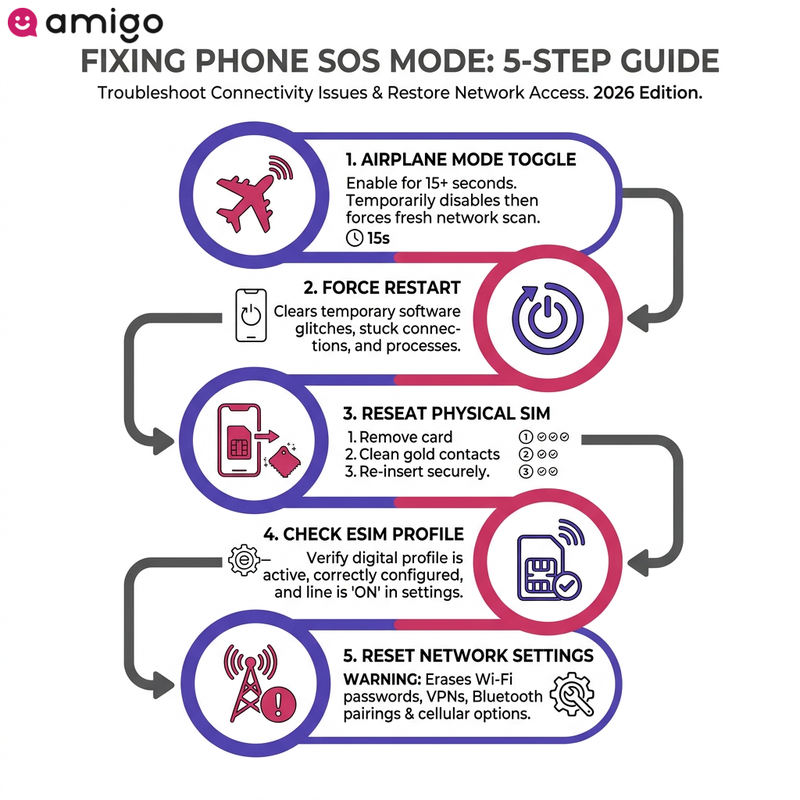
In my experience, this is the "have you tried turning it off and on again" of network troubleshooting, and it works surprisingly often. Turning on Airplane Mode temporarily disables your phone's internal radios, forcing it to drop its current, glitchy network connection. Once you turn it back off, this prompts your device's modem to start fresh, scanning the area to connect to the strongest available LTE or 5G tower.
Keeping the device in this isolated state for at least 15 seconds is a great trick to get out of SOS mode. Toggling wireless radios serves as an effective first step for fixing signal drops because it instantly resets your active network connection. Doing this usually clears a Searching or No Service indicator, fully restoring mobile data and network connectivity.
How do you force restart your device?
A force restart performs a hardware-level reboot that clears temporary software glitches affecting network connectivity. Instead of shutting down normally, it forcefully resets device memory and background processes, including stuck network connections and frozen apps.
The main difference between a hard reboot and a normal restart is how they handle power: a hard reboot instantly cuts power to the hardware, which forcefully reinitializes the modem rather than waiting for software to shut down gracefully. Pressing the right buttons can clear a No Service or Searching status if a device running iOS or iPadOS remains stuck in SOS mode. Try this hardware-based solution to restore the cellular network before applying a software update or resetting network settings.
How do you check your physical SIM card and SIM tray?
Inspecting and reseating the physical SIM card ensures the proper hardware contact required for network authentication. A damaged SIM tray or improper seating prevents a smartphone from reading your SIM card. Poor contact in the SIM slot is a common hardware-related cause of devices dropping into SOS mode or displaying a No Service indicator.
I've seen countless phones drop their signal simply because they took a hard tumble that nudged the SIM tray out of alignment. Try these three quick steps if you've recently dropped your phone:
- Removing the card
- Cleaning the gold contacts
- Popping the card back in securely
Restoring this physical connection clears a Searching status and re-enables your mobile data. If you use a dual SIM phone, verify both slots to restore cellular data options and stabilize overall network connectivity.
How do you fix eSIM connectivity issues?
To fix eSIM issues, first check that the digital profile is active and correctly configured in your device settings. Ensure the specific eSIM line is turned on within the cellular data options to restore network access. This step is critical on dual SIM devices where multiple lines manage mobile data.
Wrong settings can instantly kill your connection and cause a No Service or SOS mode indicator. Troubleshooting a digital SIM profile that fails to connect involves two main steps: toggling the line off and on, and installing a carrier settings update. These updates contain the necessary routing information to make your digital SIM function correctly, whether you're connecting to your home network or traveling abroad.
Why should you check for carrier settings and software updates?
Software and carrier settings updates patch system errors that cause connectivity drops. Installing the latest iOS or iPadOS version fixes software bugs that trigger emergency modes, such as SOS mode and a No Service indicator.
A manual update provides the latest network configuration required for optimal performance. These updates often include fixes for the modem's software, helping your phone maintain a stable connection to LTE and 5G networks.
When should you reset network settings?
Resetting network settings serves as a deeper troubleshooting step if basic restarts fail to resolve persistent SOS mode. This procedure forces the hardware to rebuild configuration files from scratch, eliminating corrupted data. Consider this the nuclear option for network glitches; I only recommend going this route when the simpler fixes aren't cutting it. Doing this will erase 4 main types of stored connections:
- Wi-Fi passwords
- VPN configurations
- Bluetooth pairings
- Custom cellular data options
Clearing these underlying conflicts resolves a persistent No Service or Searching status on devices running iOS. This targeted reset restores network connectivity if corrupted settings are blocking your mobile data. After the reboot, you regain access to normal phone features like regular phone calls and Wi-Fi calling.
Why does SOS mode happen during international travel?
Nothing ruins the excitement of stepping off a plane quite like realizing your phone is practically a brick. A smartphone drops into SOS mode during international travel primarily because the device lacks authorization to connect to foreign cellular networks. Without an active international roaming agreement, a mobile device can't automatically connect to local towers abroad. When this happens, it completely disables mobile data and triggers a No Service indicator.
To maintain stable network connectivity overseas, you can use alternative options like travel eSIM providers (such as Amigo) or local physical SIMs. A device maintains network access when you configure these cellular data options correctly. If you use a dual SIM setup, you might frequently experience this emergency state if your primary domestic line remains active without roaming privileges.
How does data roaming affect cellular connectivity abroad?
You must explicitly enable data roaming in your device settings to connect to local networks while abroad. Failing to enable data roaming or lacking an international data plan results in an immediate SOS status upon arriving in a new country. This setting simply allows your phone to use a foreign carrier's network. Verify this toggle is active for specific cellular data options, such as primary SIMs and travel eSIMs, to maintain connectivity.
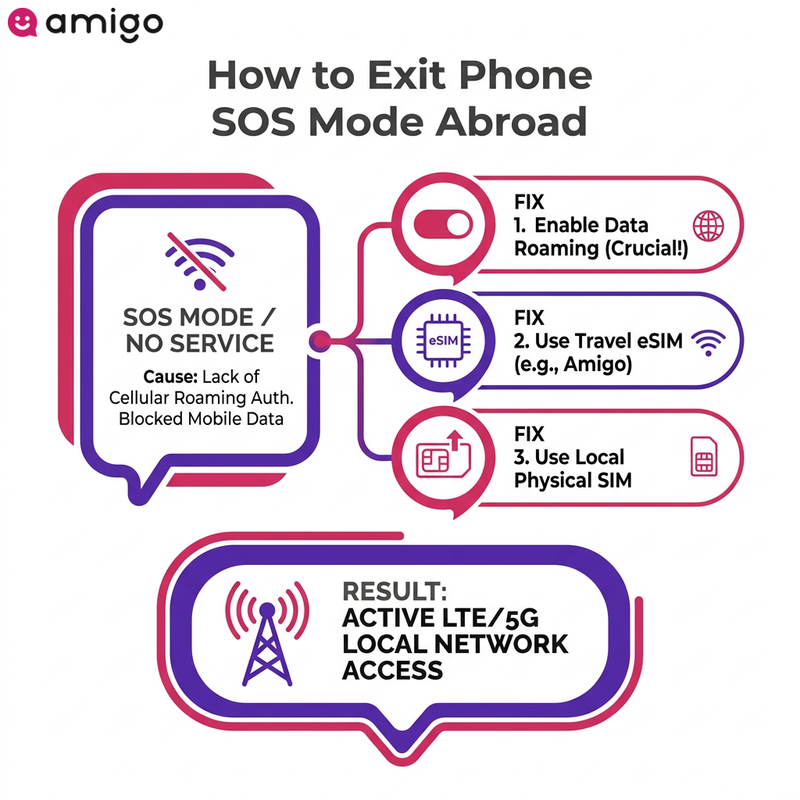
Activating data roaming is an essential fix to remove an SOS mode or No Service indicator when traveling outside your home network. Turning this on gives you immediate access to the local cellular network across main frequencies like LTE and 5G.
Can IMEI registration issues cause SOS mode?
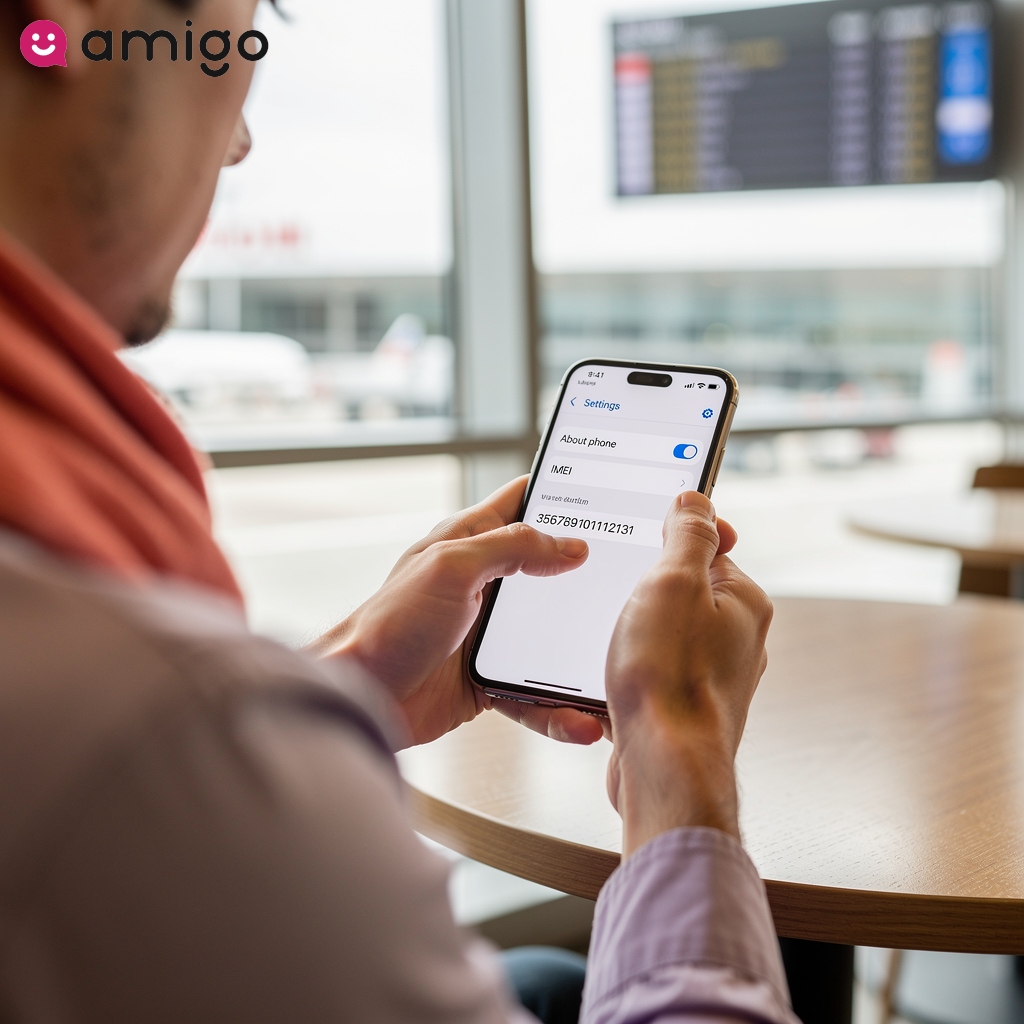
Failure to comply with local IMEI registration laws blocks a device from accessing the local cellular network. Some countries require you to register your phone's unique hardware ID, primarily to combat theft and regulate overall network connectivity. Local carriers actively block the smartphone connection if the hardware remains unregistered.
This restriction completely disables mobile data. A device drops to SOS mode or displays a No Service and Searching status if you ignore these rules during international travel. You must complete IMEI registration to get your physical SIM or eSIM to work in specific jurisdictions.
How can you use Wi-Fi calling while in SOS mode?
Wi-Fi calling is an alternative communication method that allows regular phone calls and texts over the internet when a device has no cellular signal. This feature routes standard phone calls and SMS messages through an active Wi-Fi connection instead of local cell towers. As long as you're connected to a router, enabling Wi-Fi calling allows a device stuck in SOS mode to maintain full communication capabilities. This technology proves particularly useful during widespread network outages or inside dense buildings with poor cellular reception.
You can bypass a complete loss of network connectivity and mobile data by activating this feature within your cellular data options. A smartphone displaying a No Service indicator can make and receive calls again without relying on the traditional cellular network. Activating this setting on devices running iOS or iPadOS ensures continuous communication during domestic dead zones or international travel. To force your phone to use Wi-Fi instead of searching for a signal, toggle Airplane Mode to disable the cellular radio before dialing a number.
How do you fix persistent SOS mode issues?
Resolving persistent SOS mode requires more advanced steps, a full system restore, or a trip to a repair shop. You must investigate potential hardware damage or severe operating system corruption if basic troubleshooting—such as a force restart, software update, or resetting network settings—fails.
A persistent No Service or Searching status indicates a critical failure preventing the device from authenticating on the cellular network. A repair tech can look at your phone to see if a deep system restore or a physical part replacement will resolve the connection error.
When is recovery mode necessary?
You can use Recovery mode as a last resort to force an operating system reinstallation if standard updates fail. By connecting the device to a computer, you bypass the loaded OS and repair deep software corruption if the hardware becomes completely unresponsive. Doing this can clear an emergency status if a standard force restart fails to restore network connectivity.
Try this step to fix persistent connection indicators, such as a stubborn SOS mode or a frozen No Service/Searching status. Plugging your iPhone or iPad into a computer lets you bypass the glitch and force a manual software update or restore from a backup. This deep system repair reestablishes access to the cellular network if critical system errors block standard communication.
Could a hardware failure cause a searching status?
A continuous Searching status or SOS mode often indicates physical damage to internal cellular components. Three main internal hardware failures permanently disable the cellular modem: water damage, logic board damage, and a bulging battery.
Physical impacts can disconnect or damage the internal cellular antenna, permanently trapping the phone in a Searching state. Physical damage usually results in a complete loss of network connectivity and mobile data because the broken hardware fails to communicate with the physical SIM card or the SIM tray. A repair shop can run diagnostics to confirm a physical hardware failure if a standard force restart fails to clear a No Service indicator. Repairing these internal components resolves the hardware error and restores normal communication across the cellular network.
Sources
- https://www.ncoa.org/article/3g-network-shutdowns-the-impact-on-older-adults/
- https://www.slashgear.com/1454067/android-airplane-mode-reset-service/
- https://support.apple.com/en-us/111786